Important
Only club administrators can create tournaments.
Opening tournament creation
Open any page in your own club’s context. Create appears on the right of the main menu.
Create → Tournament. Opens the tournament creation wizard.
Tournament creation wizard
Step 1. Tournament information
Enter basic information at the first step.
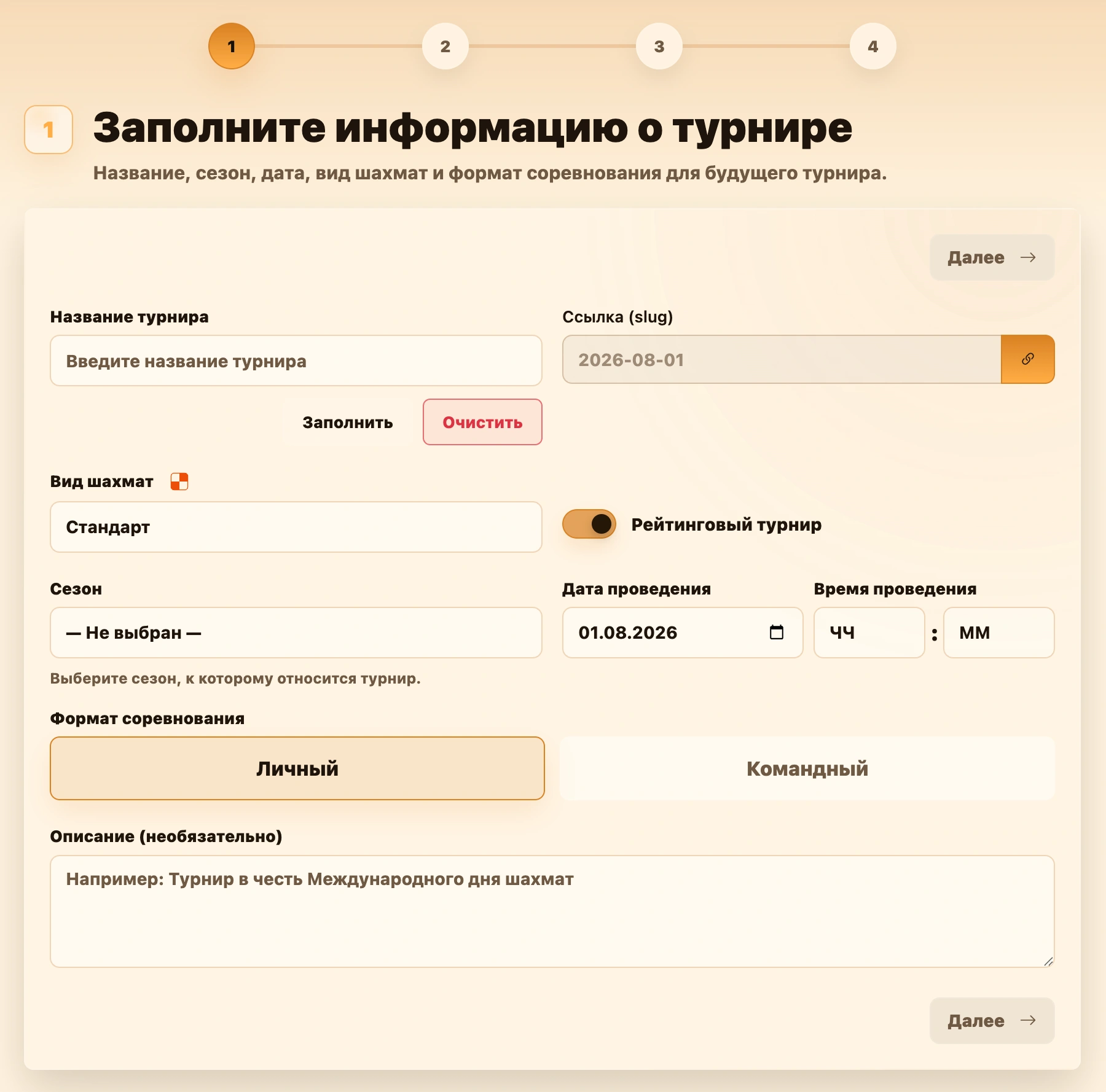
- Tournament name. Required, with at least three characters. Fill inserts an example; Clear starts over.
- URL (slug). The tournament page address. Generated from the name and date by default. The chain button disables automatic generation so you can enter Latin letters, digits and hyphens manually.
- Chess variant. Choose Standard, Chess 960, Bughouse, Doubles 2x2 or Hand and Brain. The last three disable individual play and automatically select team format.
- Rated tournament. Enable to recalculate ratings after completion. Disabled means a friendly tournament.
- Entry fee. Enable if the administrator needs to track entry payments. Free tournaments do not show a payment column.
- Base fee. Check the entry amount for a paid tournament. A configured club fee from Finances is used initially; pricing rules or individual charges can override it for particular players. Currency comes from the club. Later club currency changes do not convert existing tournament amounts.
- Subscriptions accepted. Appears for fee-based events and permits club subscriptions to cover entry. Enabled by default; disable for events excluded from subscriptions.
- Season. Optional; links the tournament’s results to club season standings.
- Date and time. The schedule appears on the homepage so participants can see when the tournament is planned.
- Competition format. Individual format is one-on-one play. Team format lets teams compete in Standard and all other variants. Some variants, including Bughouse and Doubles 2x2, support only teams.
- Description. Optional text in the tournament header, useful for venue, rules or organizer notes.
Creating a paid event and charging fees do not mean money was received. Record payment amounts and dates separately on the tournament page or in Finances.
Step 2. Playing settings
First select the pairing system: Swiss, round robin or mixed. The fields below change accordingly.
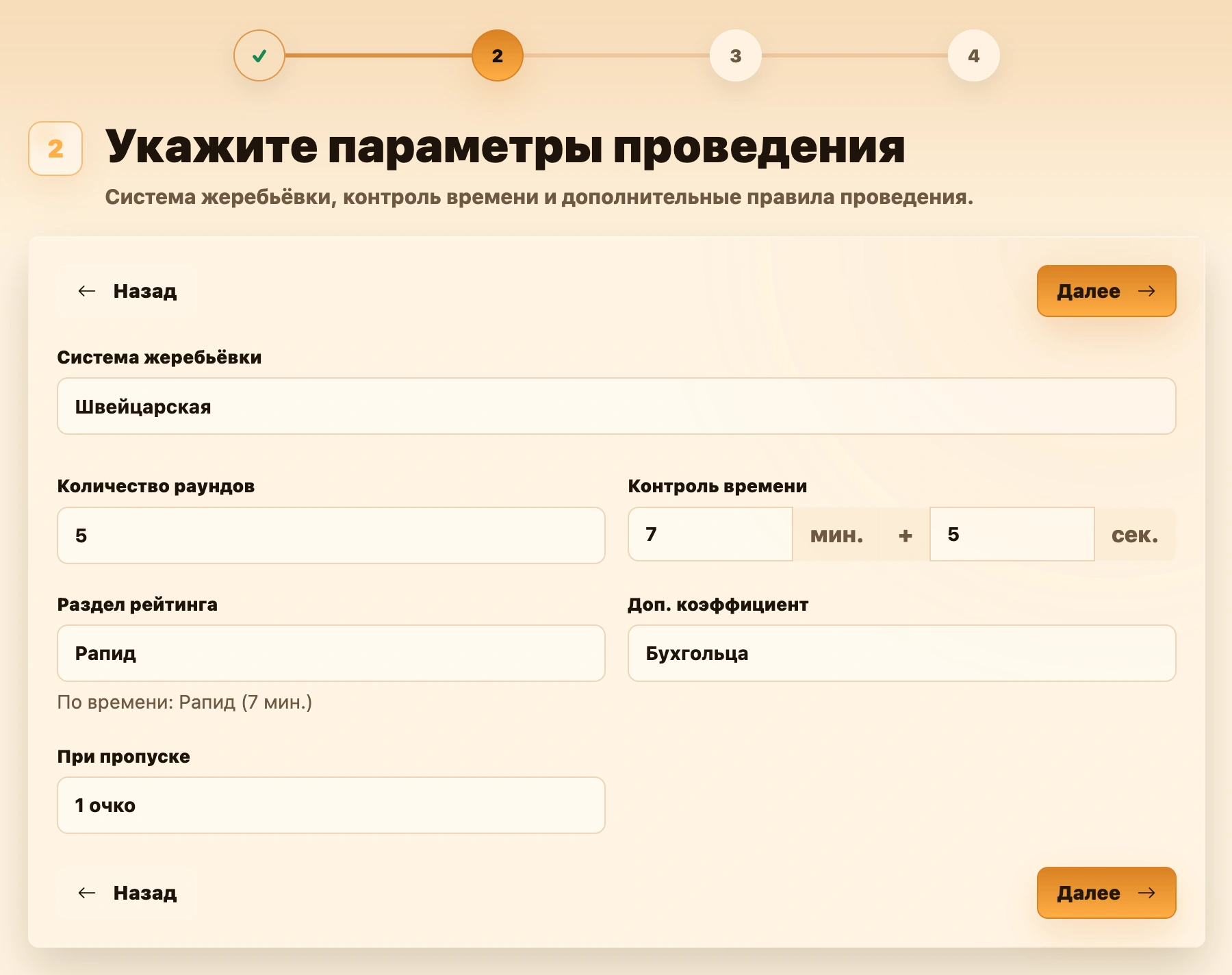
Swiss system
- Number of rounds. Planned rounds. An odd number is recommended. During play, additional rounds can be created if needed and enough participants are available.
- Time control. Starting minutes and increment seconds per move. Duration is shown for information rather than directly controlling tournament play. Changing it also suggests a category, which can be overridden manually.
- Time control category. Rating category: Bullet, Blitz, Rapid or Classic. The service suggests a category from the entered time; you can select another manually.
- Tiebreak. An additional ranking measure for equal points. Currently Buchholz is available.
- For a bye. Points for an unopposed player: 1, 0.5 or 0. An odd field leaves one participant without an opponent, automatically receiving this result. A value of 1 is recommended for Swiss. Each BYE result can be changed manually.
See Swiss system.
Round robin
- Number of cycles. How many times each pair meets. Additional cycles can be created during play. Rounds per cycle are calculated from participant count.
- Time control and category. Work as in Swiss.
- Tiebreak. Used for equal scores; currently Buchholz is available.
- Random colors for the final odd cycle. In round robin, the first cycle assigns colors and the second reverses them. With an odd number of cycles, this setting can randomize the final cycle’s colors to avoid a predetermined extra-color advantage.
See Round robin.
Mixed system: qualification and playoffs
Mixed events have two stages. Choose Swiss or round-robin qualification and configure it, then set up playoffs as described below.
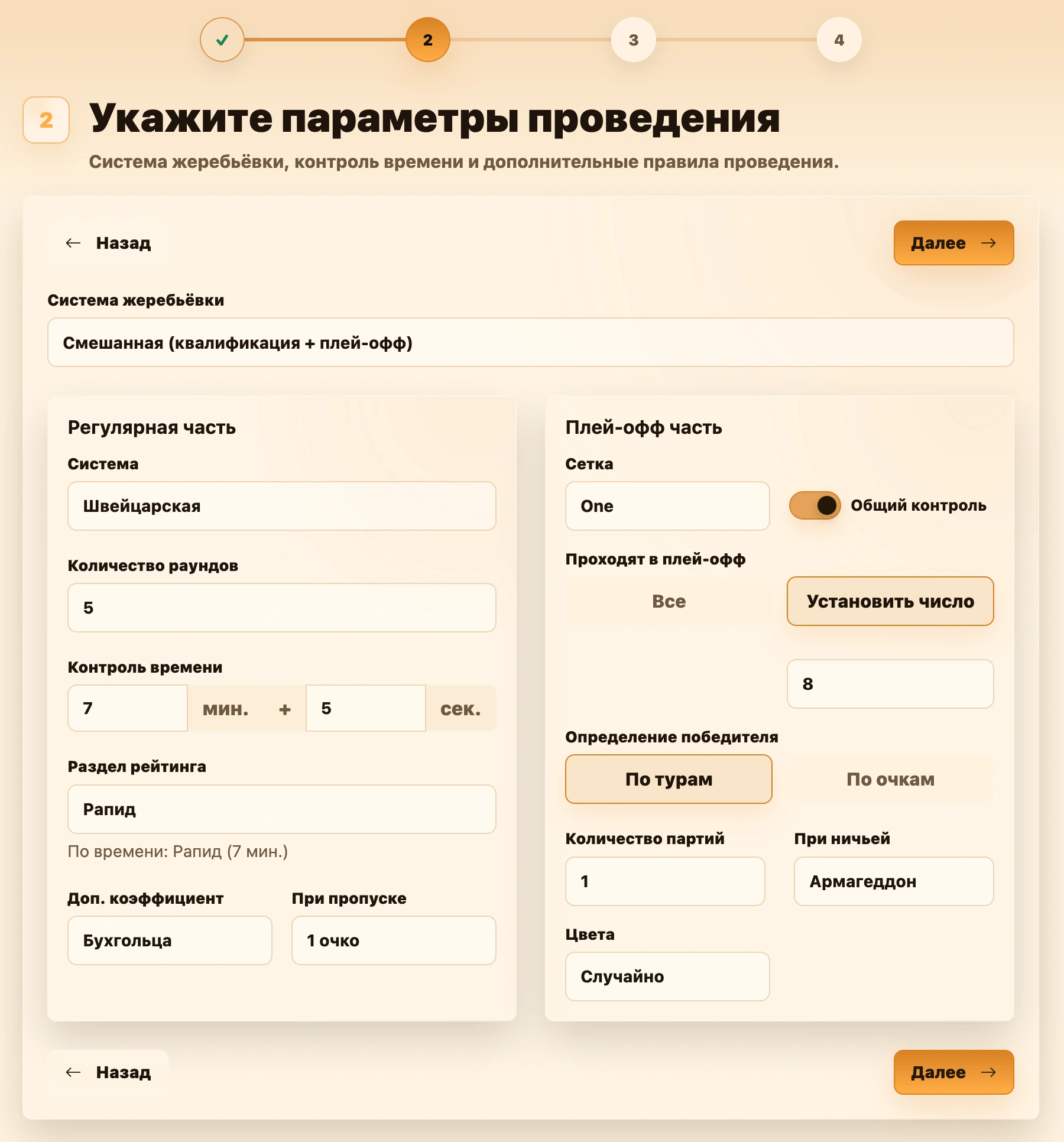
- Bracket. Choose one bracket or two, Top & Bottom. One produces a single winner. Two run independent playoffs for higher and lower qualifiers. Losers leave their own bracket rather than moving to the other; each bracket has a winner.
- Advance to playoffs. Choose participants for the selected bracket type:
- One bracket.
- All. All registered participants enter playoffs.
- Set a number. The specified number of top qualification places advance.
- Upper and lower brackets.
- Split in half. Divide qualifiers into upper and lower halves.
- Participant count. Specify how many top places enter bracket 1 and how many subsequent places enter bracket 2.
- All remaining. Set bracket 1’s field; everyone after it enters bracket 2.
- One bracket.
- Bracket size. Each bracket must contain 2, 4, 8, 16, 32 or another power-of-two field. Check both sizes separately before starting.
- Shared time control. Enable to copy starting time, increment and category from qualification. Disable to configure separate playoff values.
- Team scoring. For team tournaments only. By boards adds all game points in the match: a three-board 2–1 score gives 2 and 1 points. By rounds treats each team match as one result: win 1, draw 0.5, loss 0.
- Winner determination. Choose when the series ends:
- By rounds. A series has a fixed number of games. After all are played, the higher total wins. In a two-game series, 1.5–0.5 wins for the first side.
- Number of games. Set how many games a series contains.
- If tied. Choose Armageddon, Black wins, play until a win, drawing lots, or game and Armageddon.
- By points. The series ends when a side reaches the threshold and leads its opponent. At 1.5, a win plus a draw is enough.
- Points to win. Set the target series score.
- If tied. Choose Armageddon, Black wins, play until a win, drawing lots, or game and Armageddon.
- By rounds. A series has a fixed number of games. After all are played, the higher total wins. In a two-game series, 1.5–0.5 wins for the first side.
INFO
The tie rule is currently stored but not applied automatically: extra games and winners are not generated automatically. The organizer plays the extra game or records the outcome manually in pairings.
Colors. Choose first-game colors for each individual playoff series:
- Random. Assign colors randomly.
- Higher seeds play White. The first participant receives White; at playoff start, this is the higher qualifier.
- Higher seeds play Black. The first participant receives Black; at playoff start, this is the higher qualifier.
Subsequent games in the same series automatically swap the previous game’s colors.
INFO
This preference applies automatically only to individual playoffs. Team board colors follow team match formation rules and are unaffected.
See Mixed system and Playoffs.
Step 3. Registering participants
Build the player list for individual play or team rosters for team play. You may skip this step and register participants after creation.
General registration settings
- Participant limit. Unlimited sets no maximum. Choose Limit to cap registration; later additions cannot exceed it.
- Count. Appears when a limit is enabled. Enter an integer of at least one. Team events count players, not teams.
Tip
A limit is useful when seats or boards are limited: announcements show the available capacity.
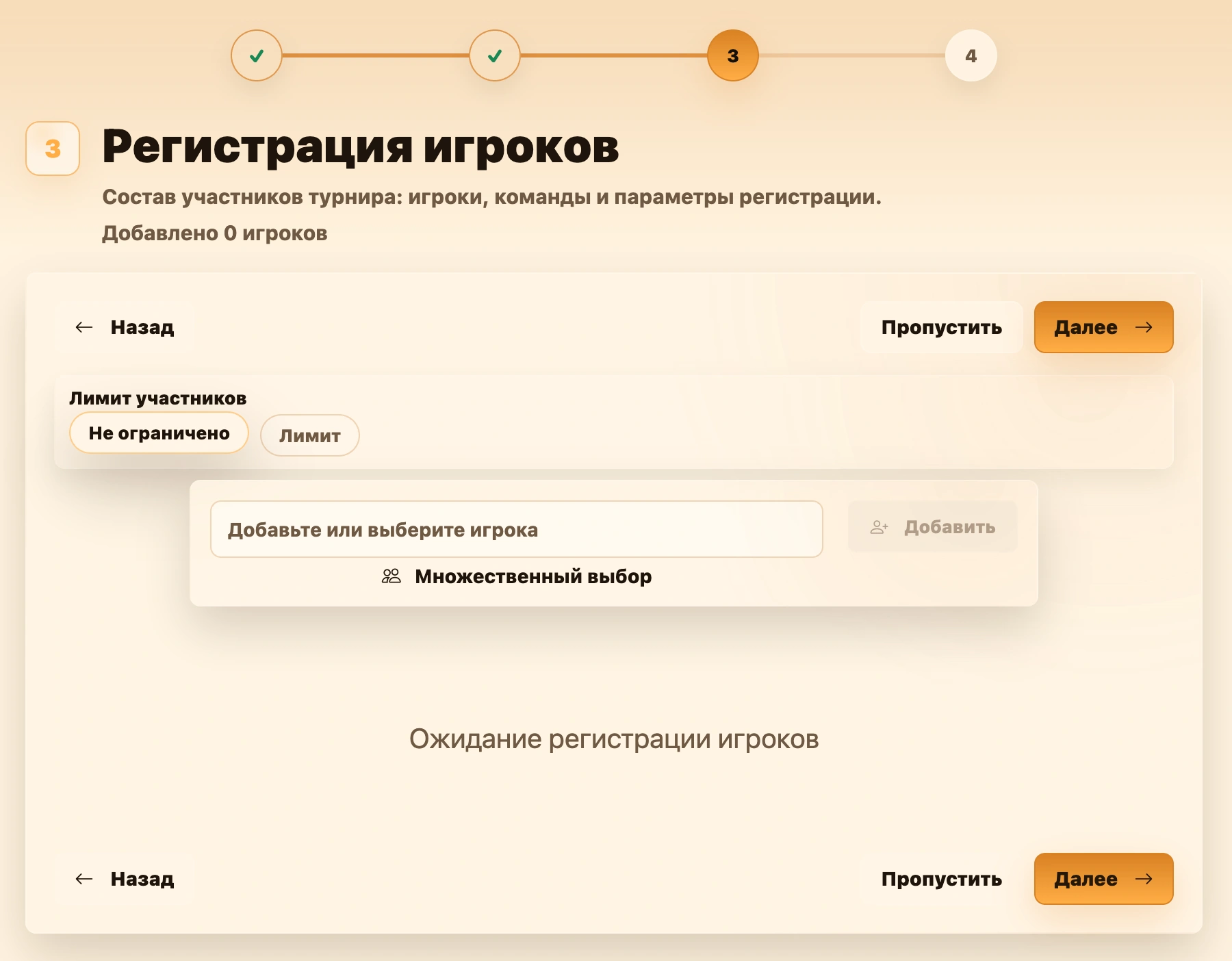
Individual tournaments and random teams
Register individual players in one list. Random-team events use the same screen; temporary lineups are formed during pairing.
- Search and add. Type a name, select a result and click Add. Typing alone is insufficient. Registered players are no longer available as choices.
- Create a player. At the bottom of the dropdown, Quick create creates a profile with the entered name, while Create new opens the full player form. After saving, the player is selected in the search field — click Add to register them for the tournament.
- Multiple selection. Opens the club player list. Select several and click Add selected. Previously registered players are unavailable.
- Registration list. Shows added players in current order. A cross removes one; Clear list removes everyone eligible for removal.
Note
The displayed rating and game count use the previous step’s variant and category. A question mark indicates a provisional rating.
Team tournament settings
These fields appear when team format is selected at step one.
- Teams in tournament. Choose how teams work:
- Fixed. The organizer assembles and saves rosters in advance. Use when partners are known before play.
- Random. Register players; temporary teams are formed for each round. Unavailable for round robin, which requires fixed teams.
INFO
Switching fixed to random moves team members into the general list and clears teams. Switching back moves players into the fixed-team assignment pool. Choose the mode before filling rosters where possible.
Players per team. Sets team size, minimum two. Bughouse, Doubles 2x2 and Hand and Brain lock it at two.
Pair opponents. Automatically lets the service choose pairings; Manually leaves individual matchups to the organizer. Rated team events require automatic pairing.
Manual mode shows opposing teams and rosters after pairing; the organizer determines individual opponents and colors outside the service.
Fixed teams
Select Fixed, collect players, then assign them manually or automatically. Tournament teams are on the left, Players to assign on the right.
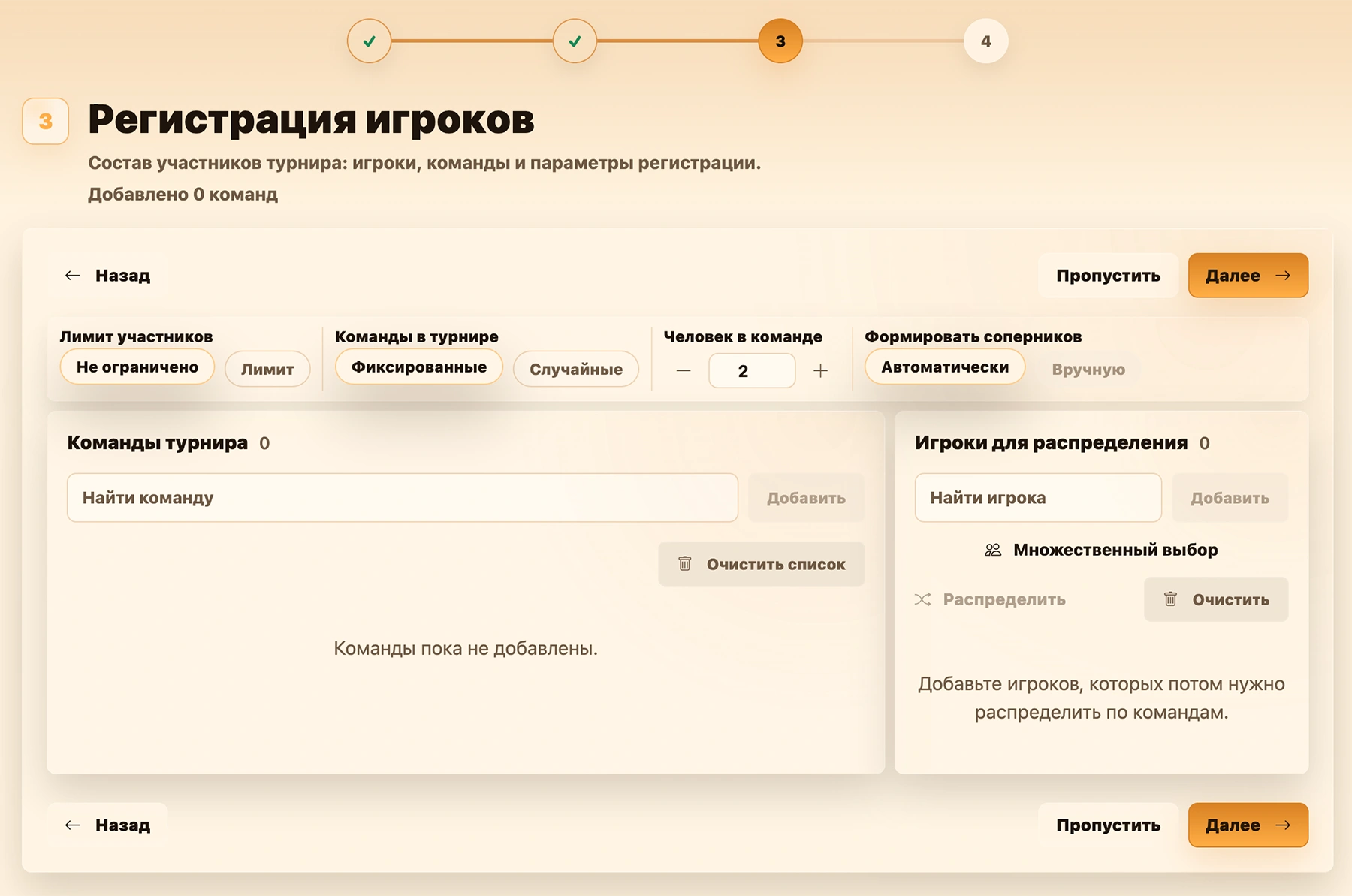
Tournament teams
The left header shows the number of added teams. Find a team is at the top:
- type a name to find a saved club team; results show its player count;
- select a team and click Add to display its roster below;
- if no team exists, enter a name, choose Create new, then Add;
- Clear list removes teams from current registration and returns players to the pool. Saved club teams are not deleted.
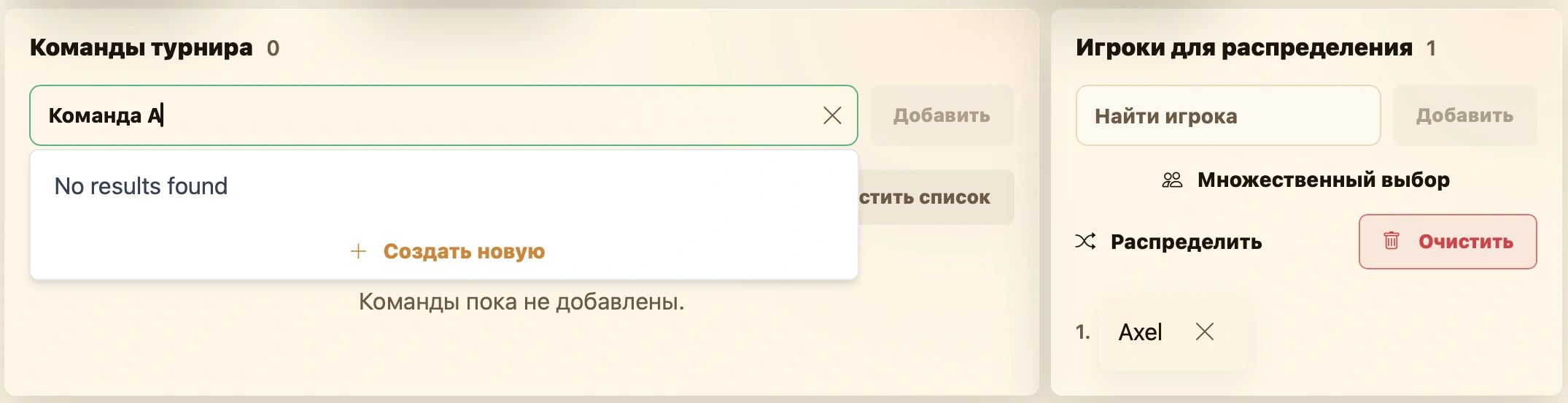
Each team has a card showing its name, average rating, rename pencil and removal cross. Under Team players, select Add player and click plus to move someone from the pool. The cross beside a player returns them to the pool.
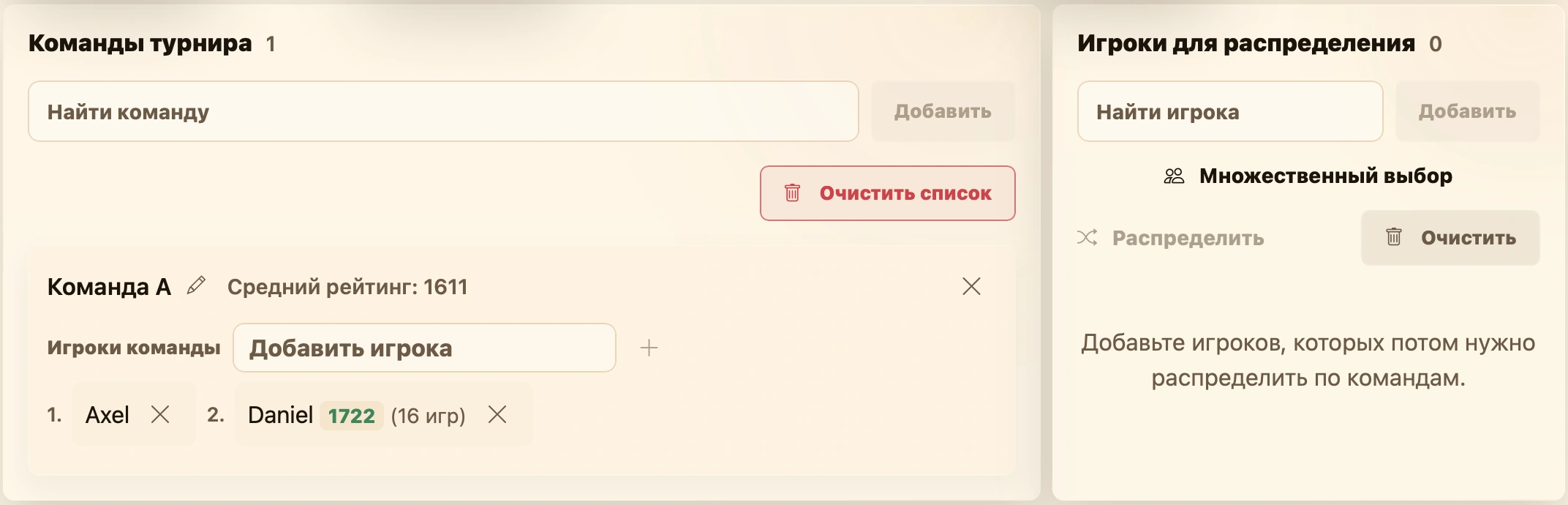
Players to assign
The right side is a temporary pool of registered players without teams. Its counter shows how many remain. Actions include:
- Find a player and Add. Select an existing profile or create one here. See Creating a player.
- Multiple selection. Opens all club players for bulk addition. See Registering participants.
- Assign. Fills existing vacancies, creates missing teams and aims for similar average ratings. Similarly rated players are distributed randomly, so repeating may change lineups.
- Clear. Removes unassigned players from the pool.
A player should belong to only one tournament team. Duplicate rosters or players on multiple teams trigger a warning before continuing.
Existing club team
Find an existing team on the left and click Add. Its roster enters the event immediately; those players leave the pool if previously added there.
Review notifications
Cards highlight teams below the required size. The service also warns about players on multiple teams or new rosters matching saved club teams. You can replace a new team with the existing one or continue; incomplete and duplicate lineups require separate confirmation.
Before confirmation, compare the limit, actual lineup and team sizes, then click Next. You can go back to fix registration; creation saves the lineup and settings together.
See Creating a team for saved teams and Registering participants for players and pools.
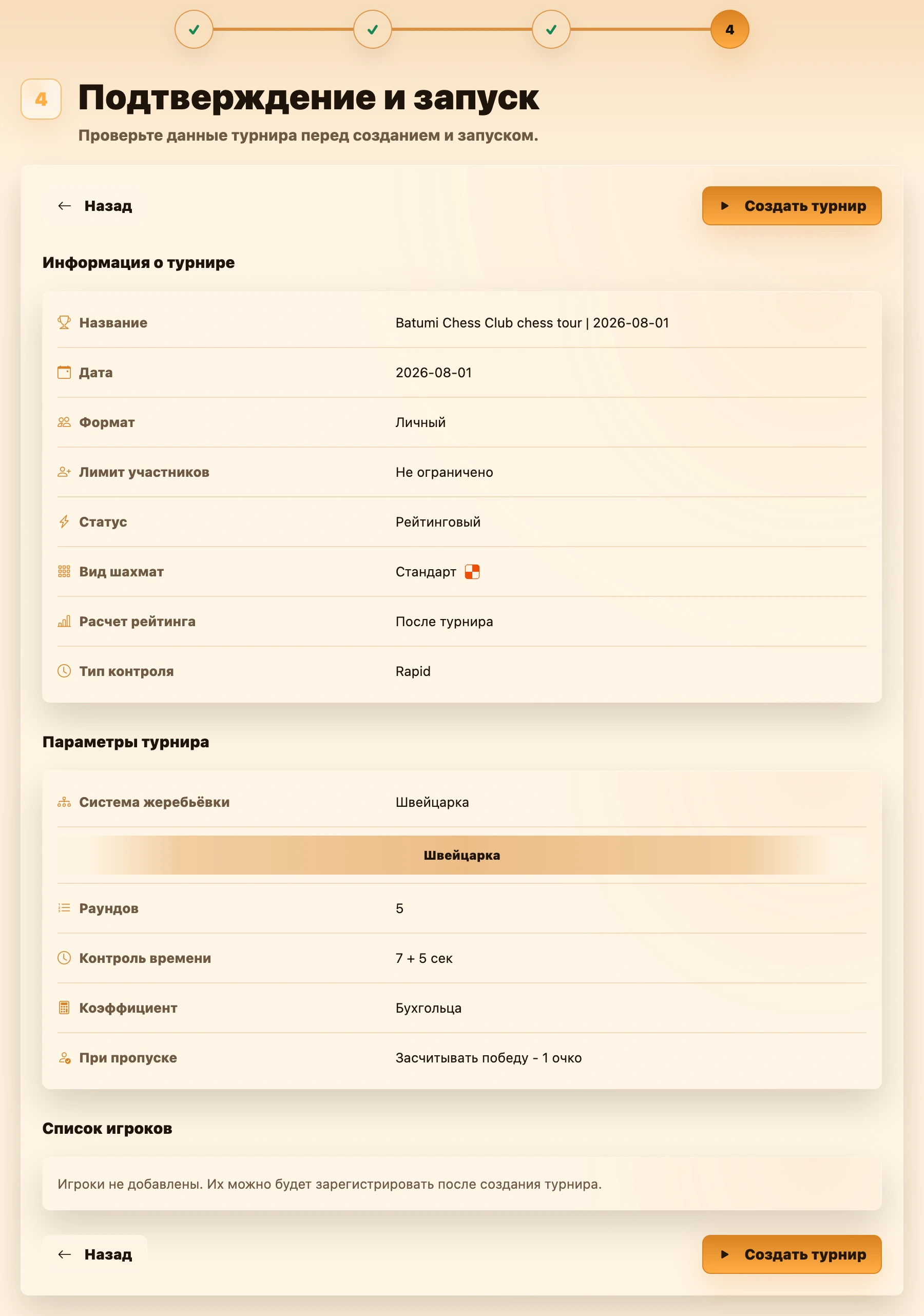
Step 4. Confirmation
The final step summarizes information, format, participants and system settings.
Check the summary. Use Back to edit earlier steps. Click Create tournament when ready; it is saved as Created. Starting and the first pairing are separate actions on its page.