Registering participants
Registration defines the tournament lineup: players for individual play, or players and teams for team events. Fill it at step three of creating a tournament or later on the tournament page.
Registration does not start the event or create matches. You can create an empty tournament and add participants before the first pairing.
Opening registration
During tournament creation
At step three, Register participants, set a limit, add players and assemble teams if applicable. The next step summarizes the lineup before saving.
This is convenient when the participants and format are already known: review all main settings before the tournament appears in the club.
After tournament creation
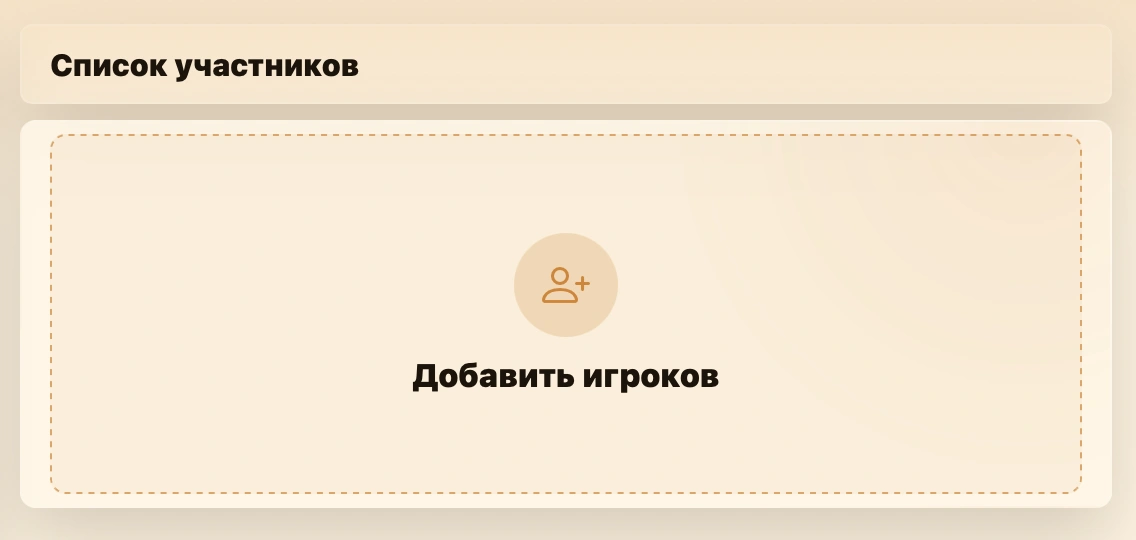
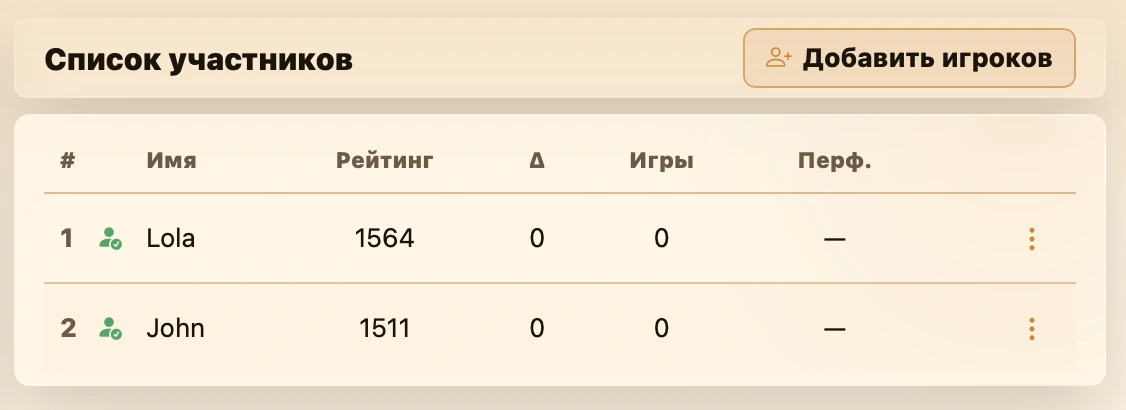
Open Information on the tournament page and find Participants. Click Add players to open registration with the current lineup and settings.
Use this to add participants gradually after advance registration opens. Dialog changes are applied only after clicking Save.
Important
Registration is unavailable after completion. While an event is running, additions remain possible, but existing participants, teams and played games are protected from changes that would damage tournament history.
What is registered
Registration depends on the competition format and team formation mode.
| Tournament setting | What the organizer adds | Pairing entrants |
|---|---|---|
| Individual | individual players | players |
| Team, random teams | individual players | temporary teams formed before rounds |
| Team, fixed teams | teams and permanent rosters | fixed teams |
Variants can restrict team settings. Bughouse, Doubles 2x2 and Hand and Brain require two-player teams. See Format and teams and Chess variants.
General settings
These work during creation and later additions, controlling registration size and displaying the relevant player data.
- Participant limit caps players, not teams. See General registration settings for rules, announcement display and examples.
- Rating and game count use the selected variant and time control, helping review lineups and balance teams. See Individual tournaments and random teams for provisional ratings.
Individual tournaments and random teams
Both use the same player-list screen. Individual players become pairing entrants directly; random-team events form temporary rosters from this pool before rounds.
See Format and teams for choosing random or permanent rosters.
Finding and adding a player
- Click Add or select a player and type a name. Opening an empty field shows the first available club profiles.
- Select a search result. Typing a name alone does not select a profile.
- Click Add. The player appears below.
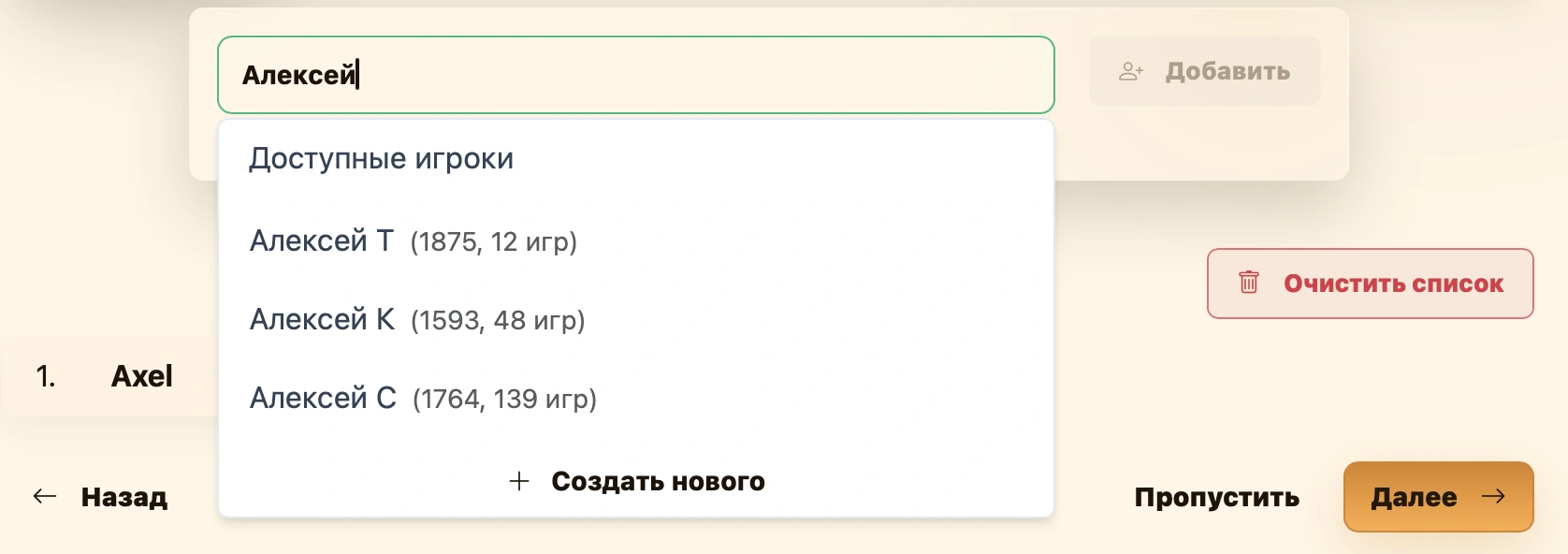
Names may show ratings and game counts for the event’s variant and time control, helping distinguish similar names.
If no profile matches, two options are available at the bottom:
- Quick create creates a profile with the name from the search field.
- Create new opens the full player form with the entered name filled in. Complete the details and save; see Editing a player for the field descriptions.
Either option selects the created player in the search field. Click Add to register them for the tournament. See Creating a player for more details.
A player cannot be registered twice; selected participants are unavailable in search.
Multiple selection
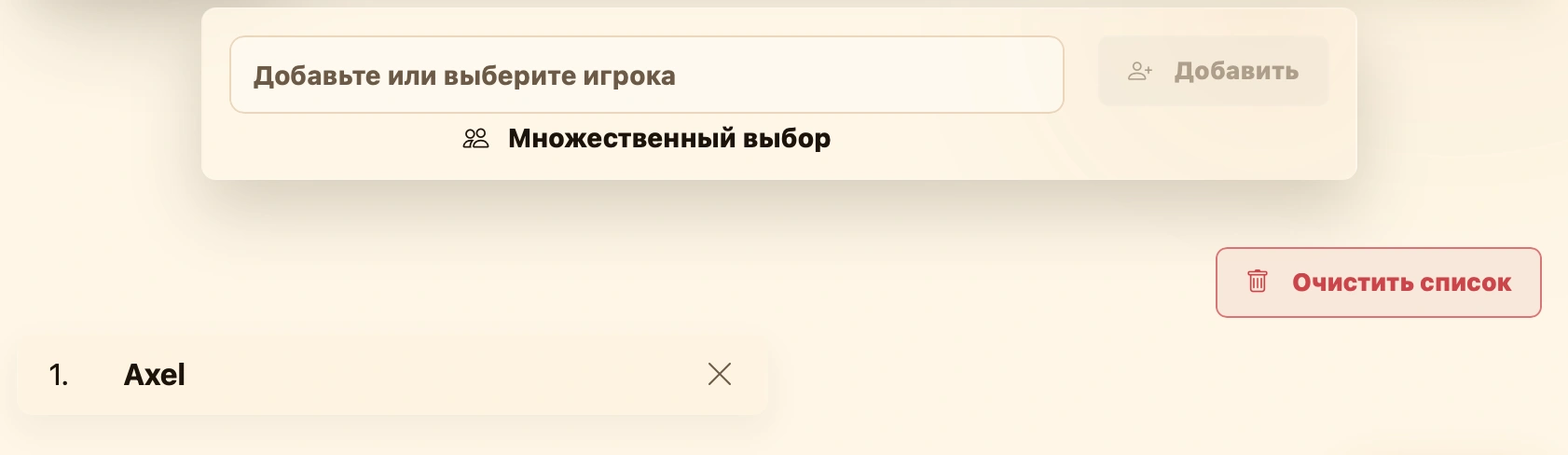
Click Multiple selection for the full club player list. Search names, browse pages, select several players or all displayed players. Counters show total matches and selected players.
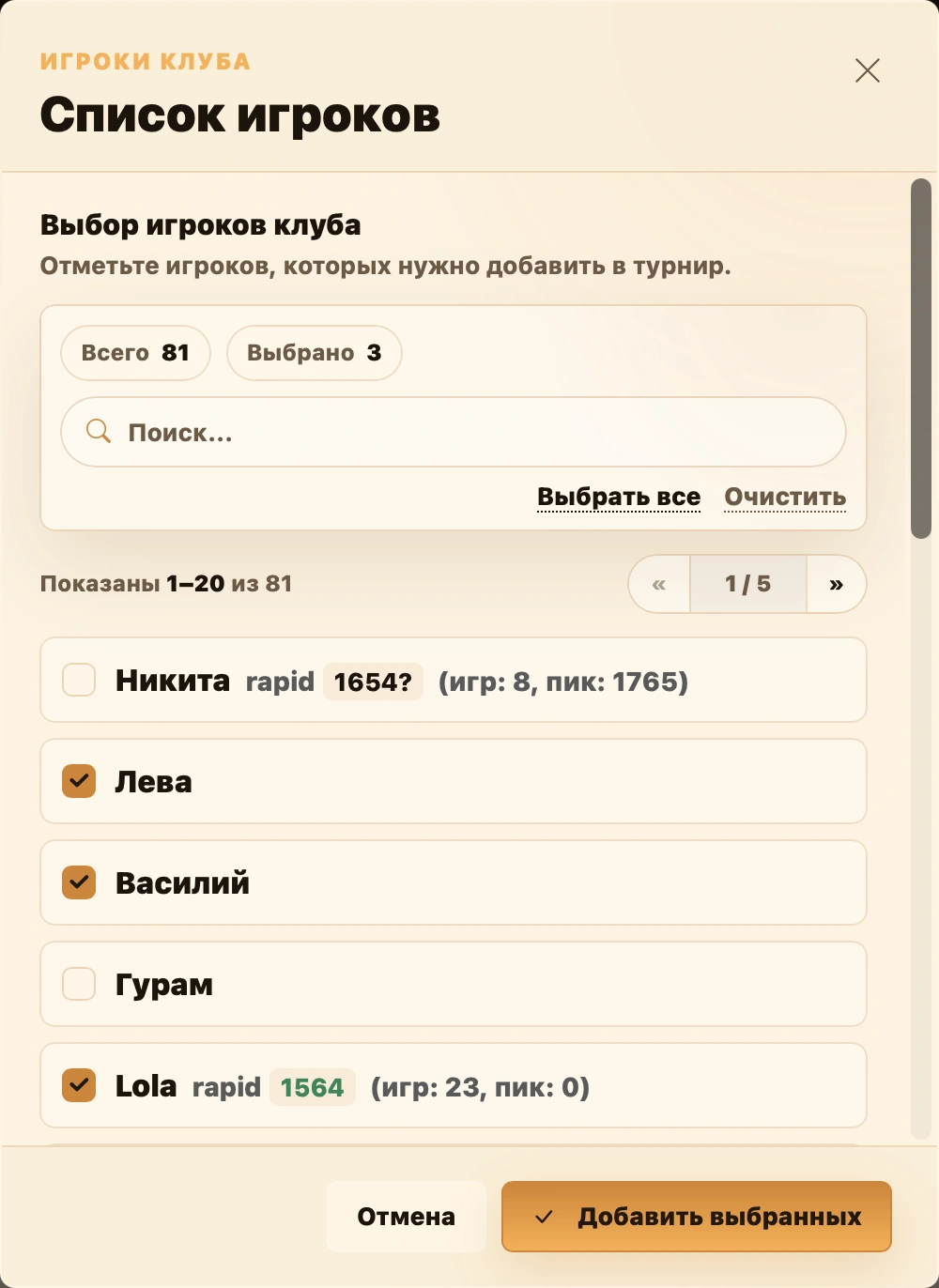
Add selected places all checked profiles in current registration. This is useful for known lineups without selecting players one by one.
Fixed teams
Fixed rosters remain unchanged between rounds. Registration has two connected areas:
- Tournament teams — permanent rosters entering pairings;
- Players to assign — the pool of players not yet assigned.
Step three of creation explains existing/new teams, manual/automatic assignment and incomplete or duplicate roster warnings: Fixed teams.
The same interface adds participants after creation. Before pairing, ensure nobody who should be on a team remains in the pool.
Changing lineups after creation
Add players opens current registration settings. Add players, check the limit and, for team events, complete rosters or change available team settings.
Existing participants cannot be removed through the general registration dialog. Use the three-dot menu in their row on Information.
Participant menu actions
Withdraw. Use when a player or team stops participating but their record and results must remain. Their row is marked withdrawn and they are no longer active for subsequent actions. The menu changes to Restore.
Restore. Reactivates a withdrawn player or team in the same slot, useful before the next pairing. A player already active in another slot cannot be restored; withdraw or replace them there first.
Replace. Opens club player selection. The replacement occupies the same slot and continues from its current standings position. Both players appear together: current above, replaced below in the substitution chain. The slot retains all points, results and place.
Each player’s rating, performance, game count and personal statistics use only games they actually played. Earlier games remain with the original player; later games belong to the replacement. A player active in another slot cannot be selected.
Payment. For fee-based events, opens the selected player’s payment settings. Mark paid/unpaid and, when eligible, choose manual payment or a subscription. See Tournament entry payments.
Delete. Removes the player from the current slot after confirmation. If substitutions exist, the latest becomes current; otherwise the slot disappears. Available only if the player has no scheduled matches; fixed-team players also require no team matches.
Fixed-team menus offer Withdraw / Restore and Delete. Withdrawal and restoration work as for players. Deletion removes the team and all its players from the event, and requires no scheduled matches for the team or any member.
Matches protect the lineup
Once matches exist, the service prevents deleting a player, team or replaced participant when that would affect the schedule. Use Withdraw or Replace instead of rebuilding registration.
Tournament entry payments
Club administrators can track payments when Entry fee is enabled. Payment belongs to each player, including in team tournaments. Coins and payment controls are not shown to ordinary visitors.
Coin states
A red coin means part of the fee is still unpaid. Click it to switch it off, just as you would a gold coin.
When you switch the coin on again, an available subscription is selected first if the tournament accepts subscriptions. An enabled coin can therefore represent cash, subscription coverage or a combination of both.
A permanently exempt player needs no payment mark. To charge them for this event only, open payment settings and enable the option to collect payment anyway.
All subscription types use the Paid by subscription tooltip. For insufficient balance, check the red colour and the amount inside the dialog.
Amount, date and a different fee
Choose Payment in the participant's three-dot menu. Mark payment, choose cash or subscription, or waive the fee for this tournament. Amount and date fields appear for enabled payment, and are hidden when payment is off or waived.
For cash, enter the amount actually received and its date. A partial amount displays the remaining amount due in the dialog and turns the coin red. When the rest arrives, change the same amount to the total received; ordinary cash payments do not need a separate supplement mechanism.
Different fee opens an individual charge field, initially filled from the received amount. This changes what the player owes. If the usual fee is 20 GEL and 15 GEL was received, either leave 5 GEL due or set a 15 GEL individual fee. Finances treats it as manual pricing, preserved during a bulk refresh.
Subscription and extra cash
The subscription must be available and cover the tournament's season or all club tournaments. The event must accept subscriptions; monetary coverage also requires a matching currency.
| Type | Usage |
|---|---|
| Visit count | One entry uses one visit. |
| Until a date | Records the event within the validity period. |
| Balance | Covers the charge up to the available balance. |
Under the selected subscription method, Add extra payment reveals amount and date. Any subscription type can have extra cash, even if it already covers the full fee. The cross removes the extra-payment form; save afterward to remove an existing extra amount.
Extra money is separate
The subscription covers as much of the charge as possible regardless of extra cash. For a 10 GEL fee and 10 GEL balance, an extra 6 GEL does not reduce the deduction to 4 GEL: coverage remains 10 GEL and cash is 6 GEL. With only 4 GEL balance, an extra 6 GEL settles the difference.
Insufficient monetary balance shows the required extra amount above the extra-payment button. Enough extra cash clears the warning and red coin. Choosing ordinary cash avoids using the subscription.
Usage is recorded at tournament completion. Changing payment for a finished tournament can add or cancel usage immediately on saving. Turning payment off or switching to cash cancels the deduction. A restored allowance may reactivate the subscription if there is no other active one.
Exemption and participant removal
Waiving this tournament's fee is a one-off exception, not a change to the player's permanent club settings. Both permanent and one-off exemptions appear as exempt with a free badge in Finances.
Exemption implies returning any cash already received. A confirmation shows the refund amount. Saving clears cash and date and cancels subscription usage. The administrator returns money separately.
Removing the player also removes their tournament payment record. Existing money triggers a refund warning. Use the payment editor, not participant removal, to correct an amount.
See Finances for pricing, rules, bulk marking and receipt summaries, or the control panel for permanent exemption and subscription creation.
Participant labels and categories
Club labels and categories appear as compact icons beside players in participant lists and standings. They identify leagues, groups and other attributes without opening profiles.
Marks visible to Everyone are public. Administrators marks appear only to the club administrator. Configure definitions and assignments in Labels and categories.
Changing registration mode
While structural changes are allowed, you can switch team modes. See fixed and random teams in Format and teams.
- from fixed teams to random: members move to the general player list and permanent rosters are cleared;
- from random teams to fixed: registered players move to the assignment pool.
If individual/team format or variant changes too, the editor requires reviewing Participants and confirming the lineup so saved registration matches the format.
Checking before pairing
Before the first round, check:
- Individual events list everyone who should play.
- Random-team events have enough players for the required team size.
- Fixed teams have complete rosters and nobody remains unassigned.
- The participant limit is not exceeded.
- Round robin uses fixed, not random teams.
- Changes are saved with Save in the dialog or Create tournament in the wizard.