Creating a team
Important
Only club administrators can create and edit teams.
A team is a saved roster of club players. It is used in fixed-team tournaments, where partners stay together throughout the event. Random-team tournaments do not need permanent teams: the service creates temporary lineups before rounds.
See Format and teams for the differences.
Where to create a team
Create a team during participant registration in a team tournament. Choose the team format and Fixed teams, then open registration during tournament creation or via Add players on an existing tournament page.
The screen has two connected areas:
- Tournament teams on the left — teams that will enter the pairings;
- Players to assign on the right — the pool of players not yet assigned to a team.
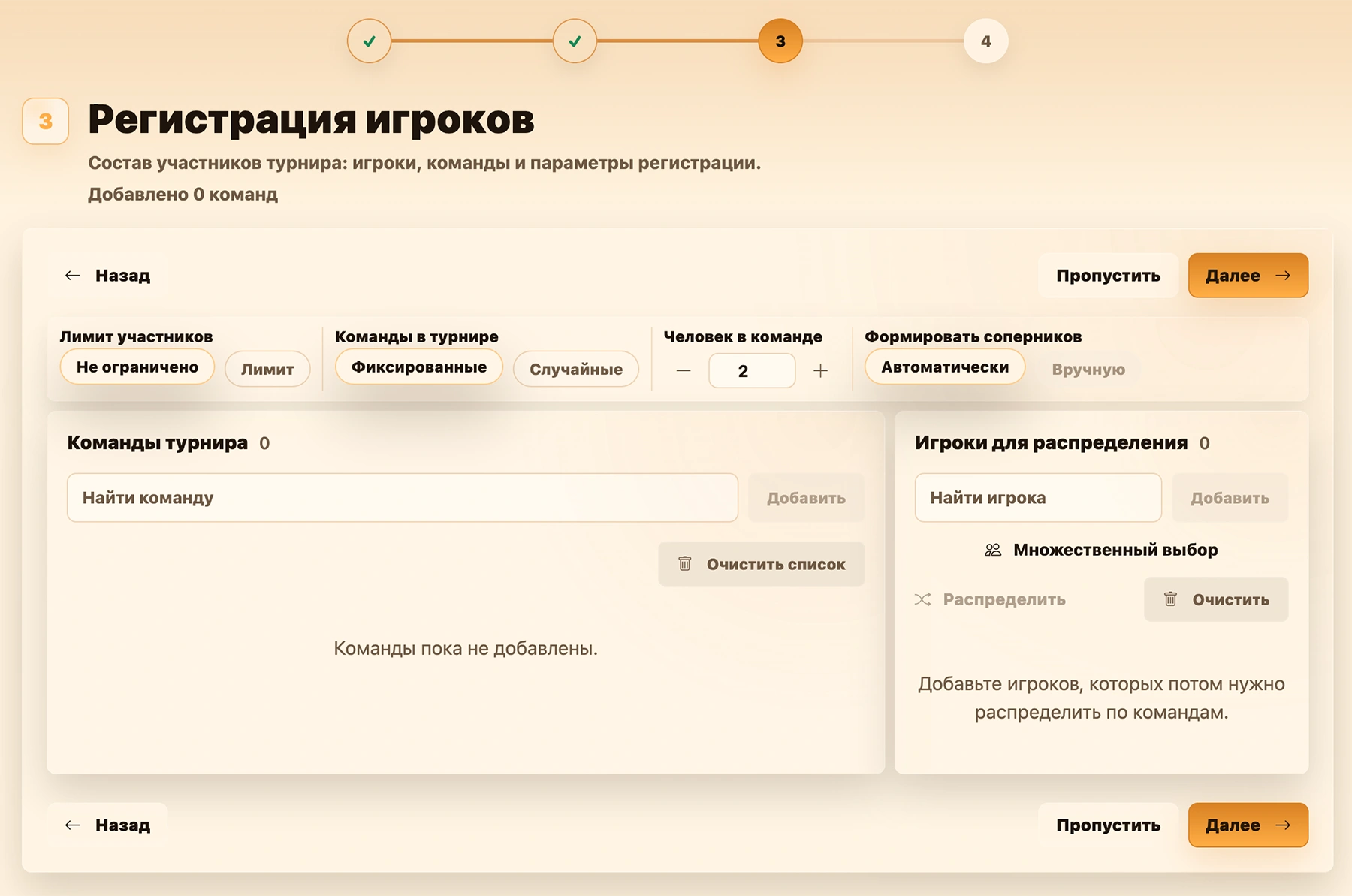
Creating a new team
- In Tournament teams, enter a name in Find a team.
- Check the results. If no team matches, click Create new at the bottom.
- The new team is selected in the search field. Click Add to register it for the current tournament.
- Use the pencil button on the team card to rename it if needed.
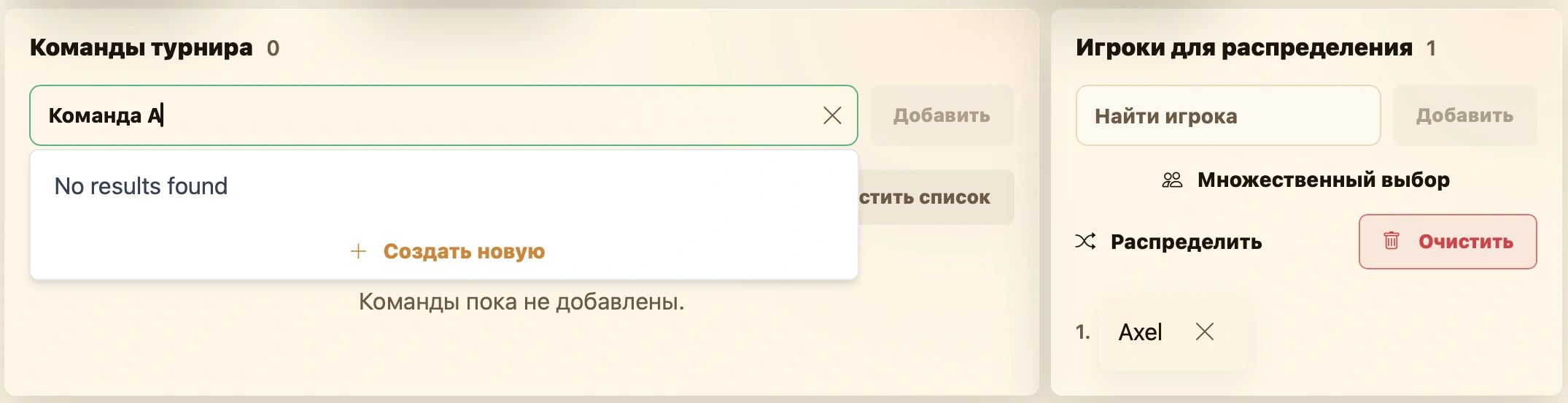
The team is saved in the club and registered for the current tournament. You can select it again in future fixed-team tournaments.
Tip
First search for an existing team. If it has played at the club before, select it instead of creating a duplicate with the same roster.
Adding players to a team
First add players to the Players to assign pool on the right. Search, profile creation and multiple selection are described in Registering participants.
Then, on the team card:
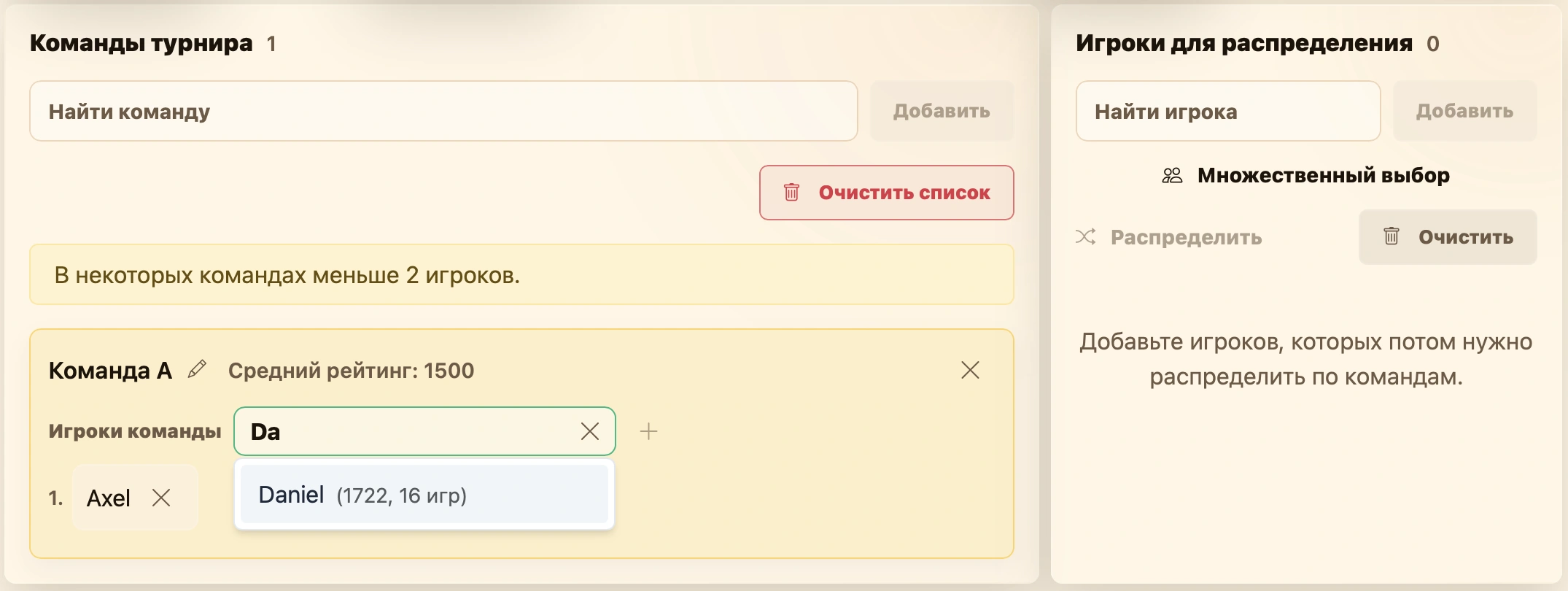
- Click Add player.
- Select a player from the pool.
- Click the plus button.
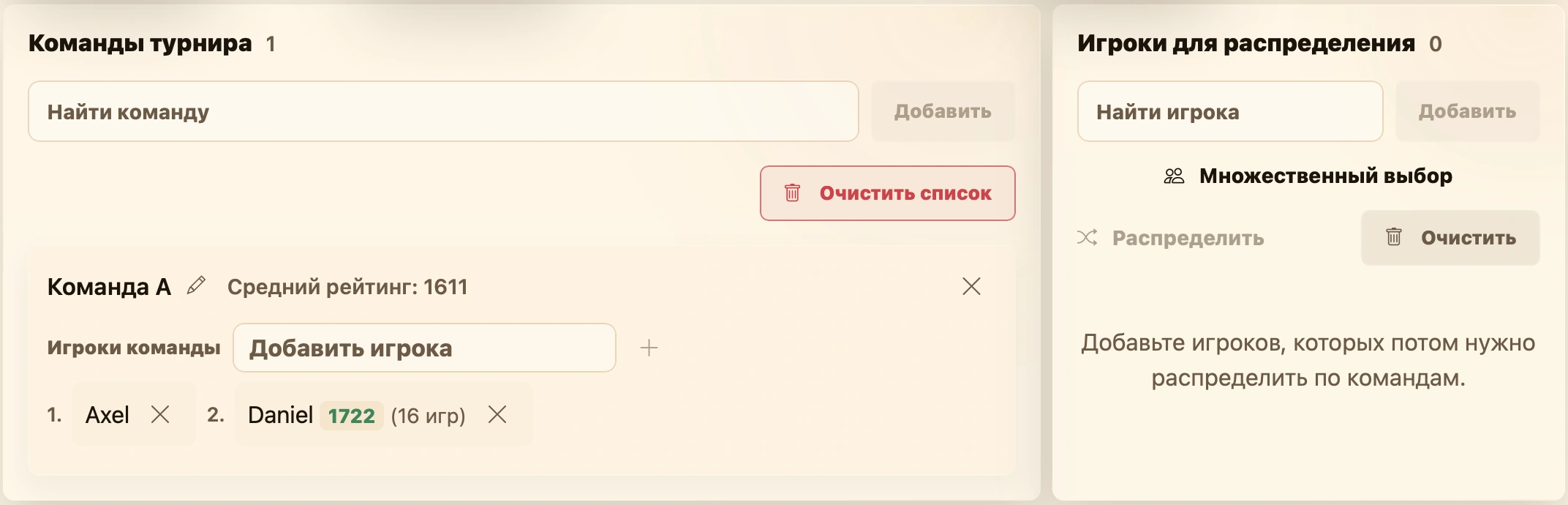
The player moves from the pool to the team. The cross next to the player returns them to the pool while editing is allowed. A player should belong to only one team in the current tournament.
Players per team determines the roster size. Bughouse, Doubles 2x2 and Hand and Brain always use two players; for team Standard and Chess960, the organizer chooses the size. See Chess variants for why.
Existing club team
If a team already exists, find it by name in Tournament teams, select it and click Add. Its roster is copied into registration. Its players are removed from the pool if previously added individually.
This is convenient for regular pairs or teams that have played at the club before. Check the roster on the team card before saving registration.
Automatic assignment
Once all players are in the pool, click Assign. The service:
- fills vacancies in existing teams;
- creates any additional teams needed;
- assigns players to keep average team ratings as close as possible.
Players with similar ratings are assigned randomly, so repeating the action may produce different lineups. Automatic assignment is useful for club evenings without predetermined partners.
Checks before saving
The service warns you if:
- a team has fewer players than the configured size;
- a player belongs to multiple teams;
- a new roster duplicates an existing club team.
You can return to fix these issues or confirm continuation. Before the first pairing, check that all teams are complete and no players remain unassigned in the pool.
During tournament creation, rosters are saved with the tournament after the confirmation step and Create tournament. In an existing tournament’s registration dialog, click Save to apply lineup changes.