Control panel
For club administrators
The panel combines player management, finances and club data operations: directories, entry payments, tournament imports, player merging and saved table updates.
Import a prepared tournament, merge duplicate profiles or rebuild saved standings here. Routine play is covered in Managing a tournament; season membership in Creating a season.
Opening and selecting a section
- Sign in as an administrator and open your own club.
- Open the user menu and select Control panel.
- On Club administration, choose a section. Club players opens first.
Import. Load tournament JSON, inspect it and save.
Merge players. Select a duplicate and target profile, check conflicts and transfer participation.
Club players. Add/edit players and manage titles, labels, categories and payment rules.
Finances. Entry charges, received payments, subscriptions and pricing rules.
Tournaments and seasons. Check, clear or rebuild caches.
Check the navigation’s club name to confirm whose data you are editing. See Club context. Ready and the header version refer to the panel itself, not an operation’s success.
Club players
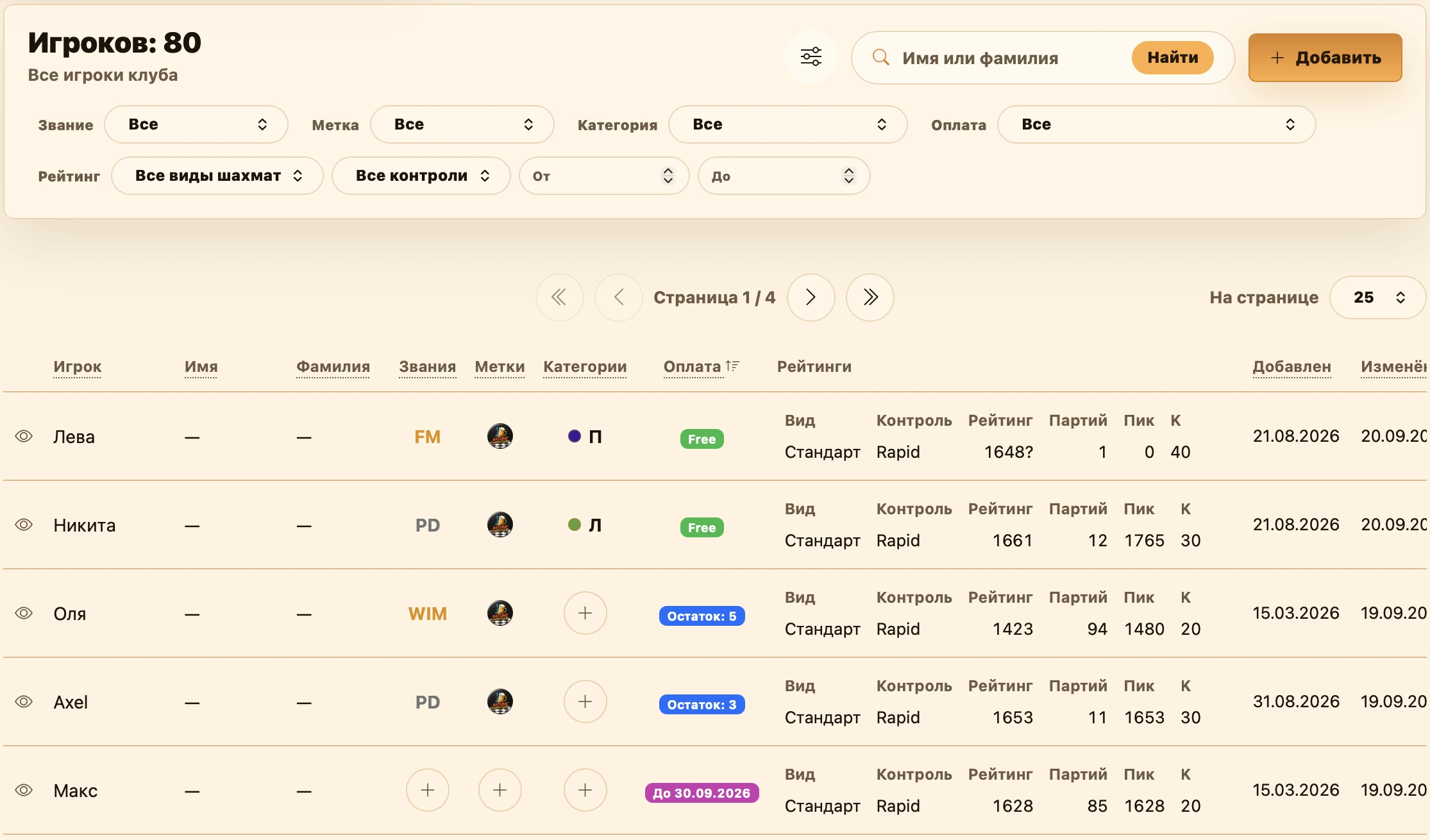
Club players is available only for your own club. Its four subsections are Players, Labels, Categories and Titles. The player table includes personal details, titles, marks, payment rules, ratings and update dates.
Search and filters
Search display name, first name or last name. Search is case-insensitive across all club players, not just the current page.
The filter button opens additional conditions:
- Title: any, local, FIDE or none;
- Label: a specific label, any label or no labels;
- Category: a specific category, any category or none;
- Payment: any rule, no rules, fee exemption or active subscription;
- Chess variant: for example Standard or Chess960;
- Time control: Bullet, Blitz, Rapid or Classic;
- Rating: minimum and maximum.
Rating filters require a matching player rating. Variant or category can be selected without a numeric range. Reset filters also clears search.
Sorting
Click an underlined header to sort. An arrow identifies the column and direction. Newest players appear first by default.
Sort by player, first/last name, title, labels, categories, payment, creation or update date. Titles follow their configured order: FIDE, local, then none; reverse sorting reverses this. A local title does not alter a FIDE-titled player’s position.
Labels/categories sort by name. The payment column distinguishes permanent exemption, the active subscription type and no payment rules. Reverse sorting reverses the sequence.
Editing a player
Click the pencil at the start of the row to edit display name, first name and last name. Club name is informational and cannot be changed.
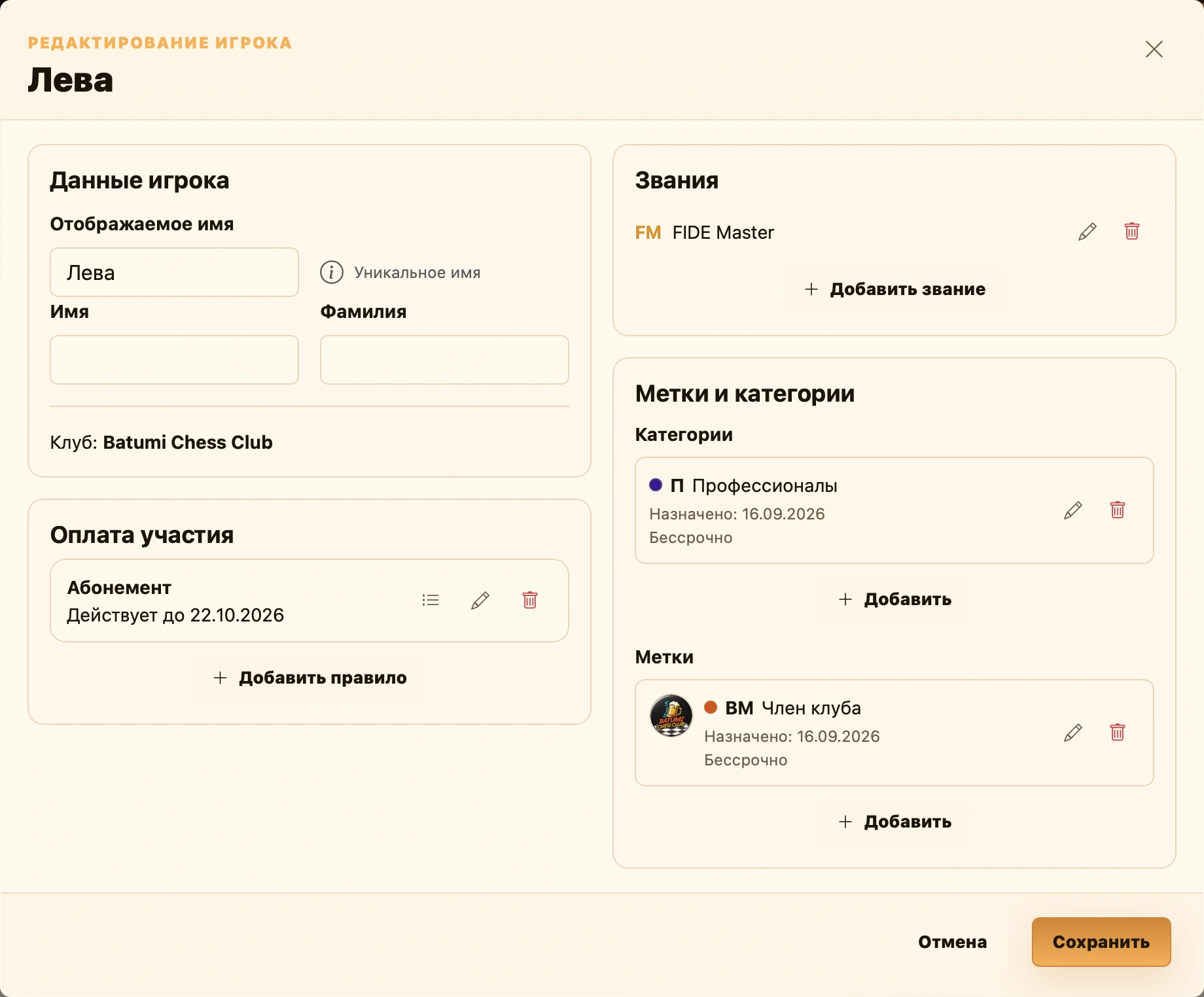
Display names must be unique, checked case-insensitively beside the field. Names allow letters from any alphabet, digits, spaces, hyphens, apostrophes and periods. Repeated spaces collapse to one.
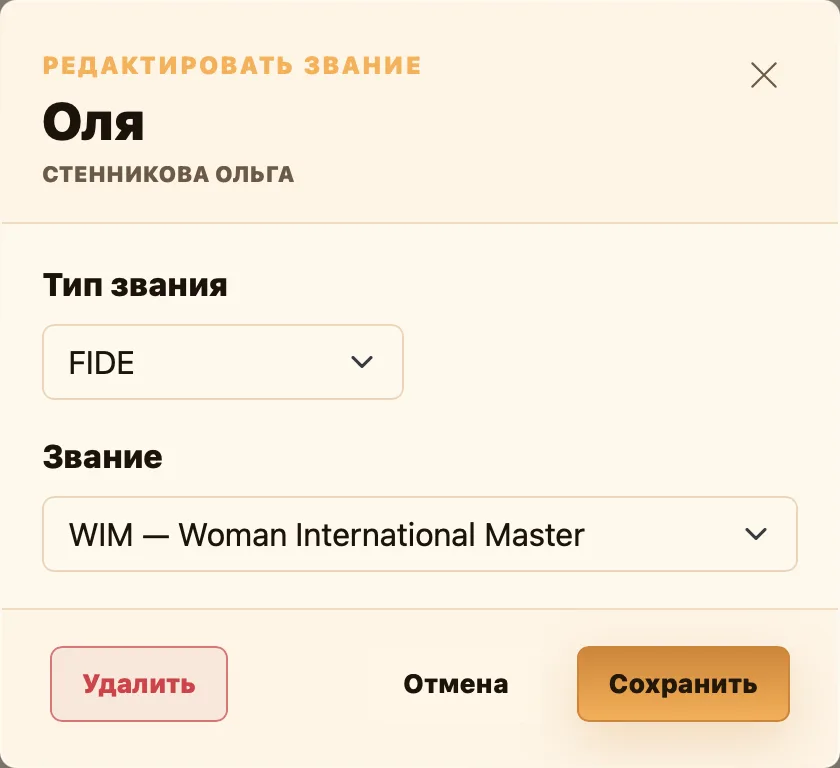
Under Titles, existing assignments can be edited or removed. Add only an unused type: one FIDE title and one local club title per player.
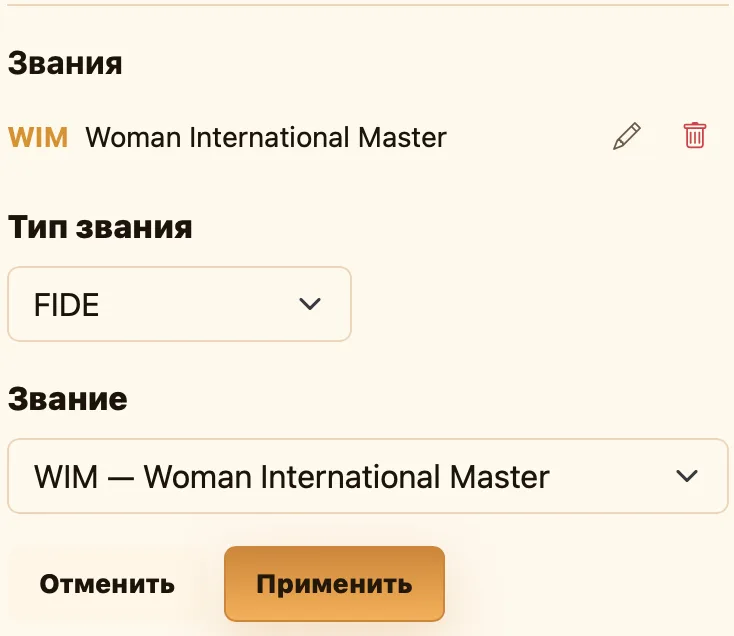
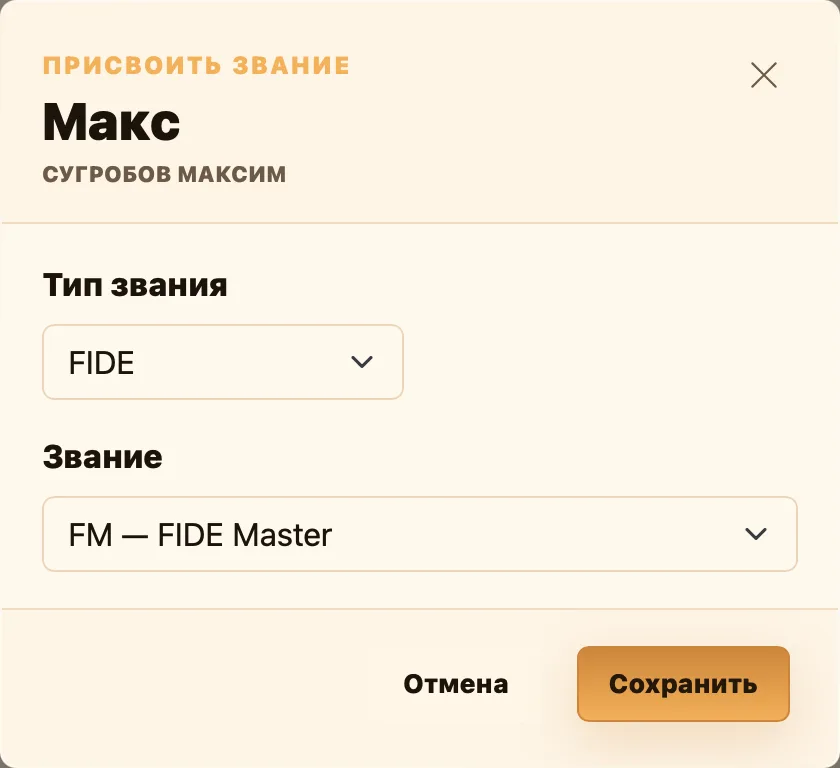
The plus in Titles opens a quick-assignment dialog. Changes apply after Save.
Local titles
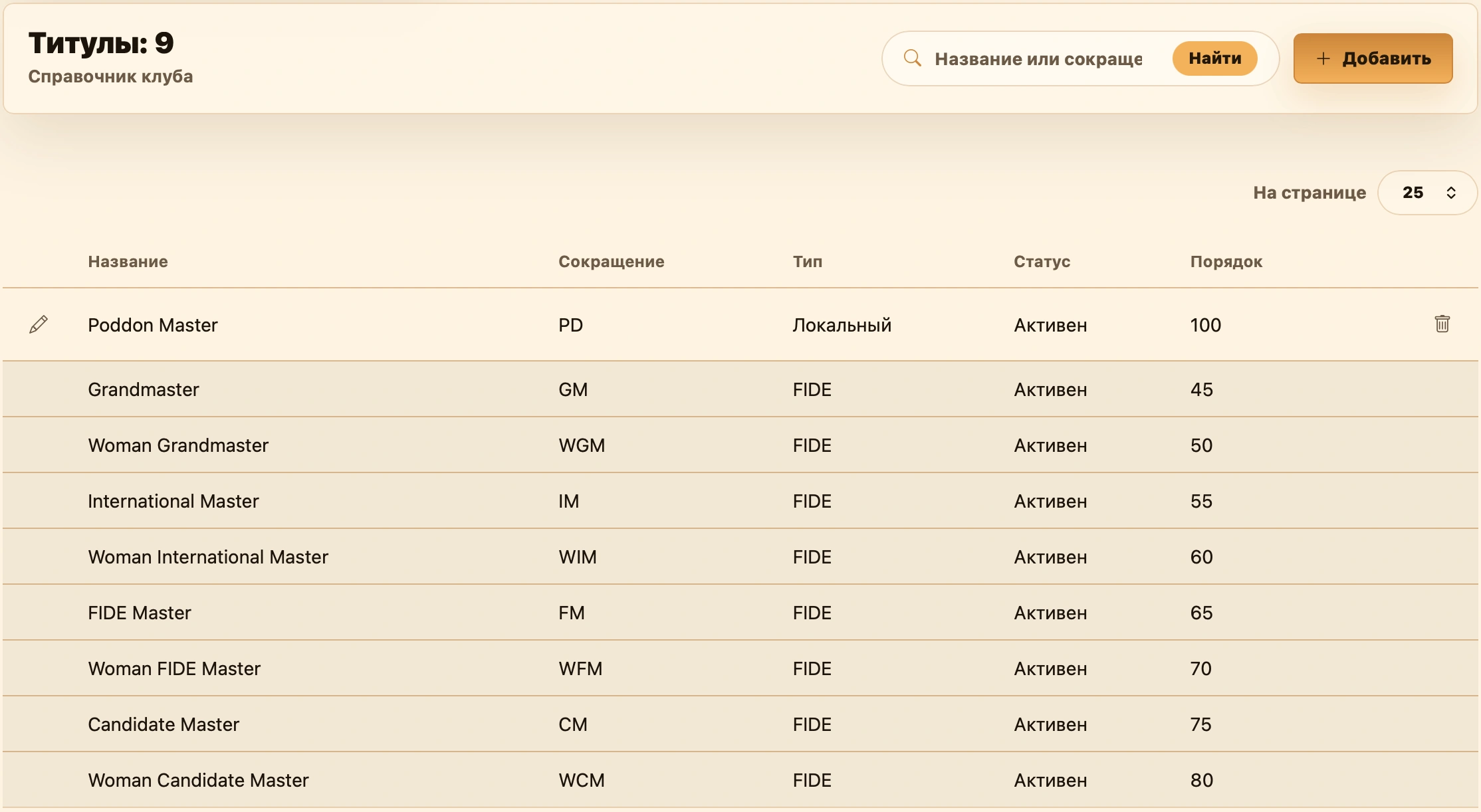
Titles contains standard FIDE titles and club-specific titles. Search name or abbreviation; the table shows type, assignment availability and overall order.
FIDE titles form a shared read-only directory. Local titles belong to the current club and can be added, edited or deleted.
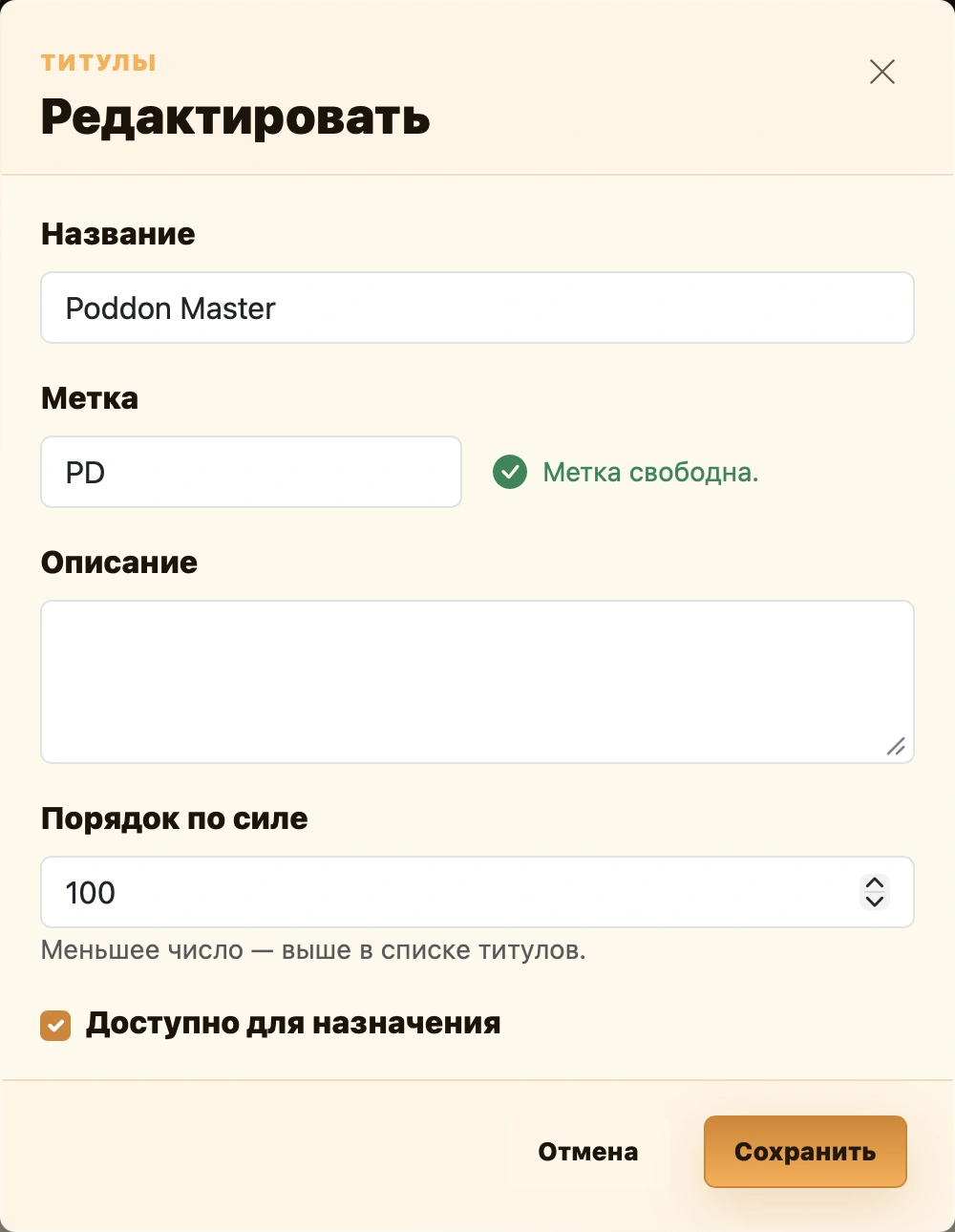
For a local title, enter:
- Name — full title;
- Label — unique abbreviation shown beside players;
- Description — meaning or requirements;
- Strength order — smaller numbers appear higher;
- Available for assignment — whether player editors can select it.
Disabled titles remain in the directory but cannot be newly assigned. Manage existing assignments in the player editor or Titles column.
Labels and categories
Labels mark club-relevant attributes, such as membership, first visits or programs. Categories suit stable groupings such as leagues or levels. Players can have several of each.
Club directories
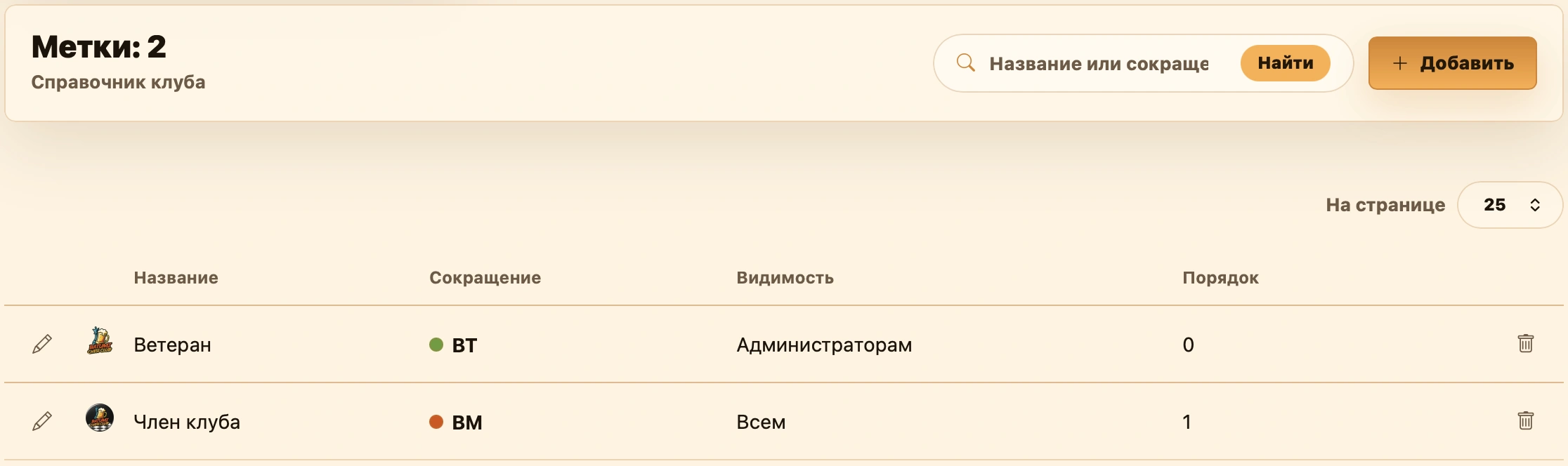
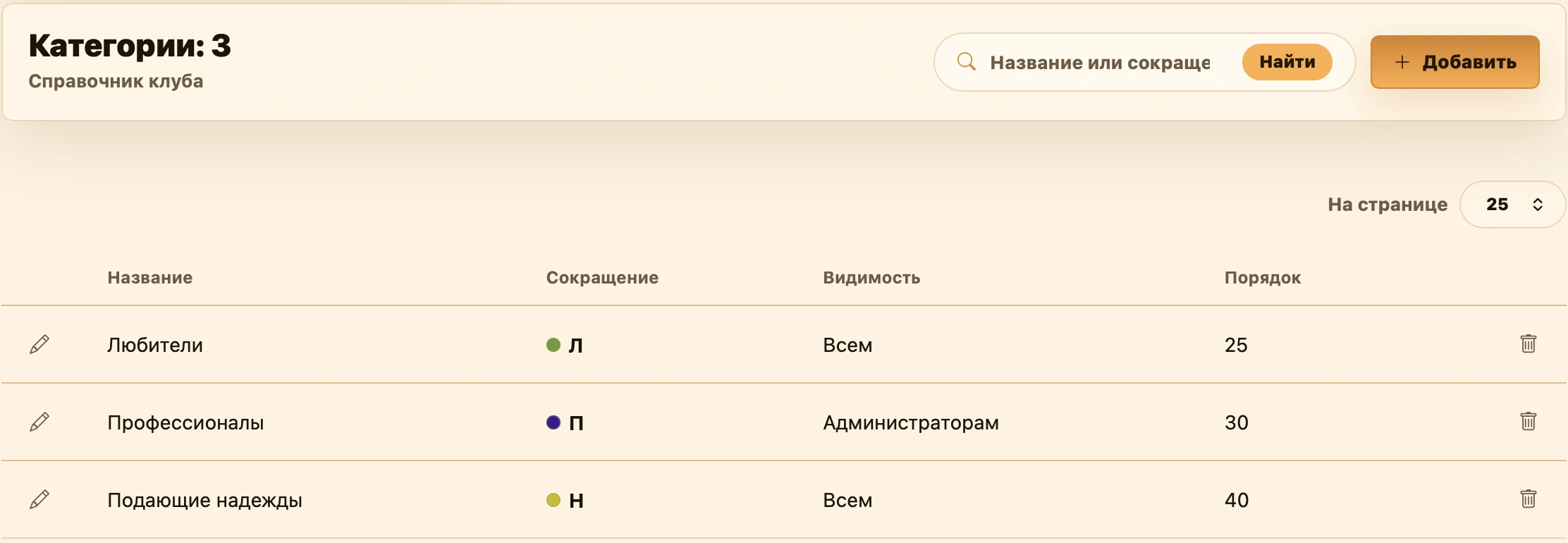
Prepare definitions under Labels and Categories. Both show total count, name/abbreviation search and Add at the top.
Tables show name, abbreviation, visibility and order, plus an image thumbnail if set. A colored dot aids recognition. Pencil edits; trash deletes.
Creating and editing
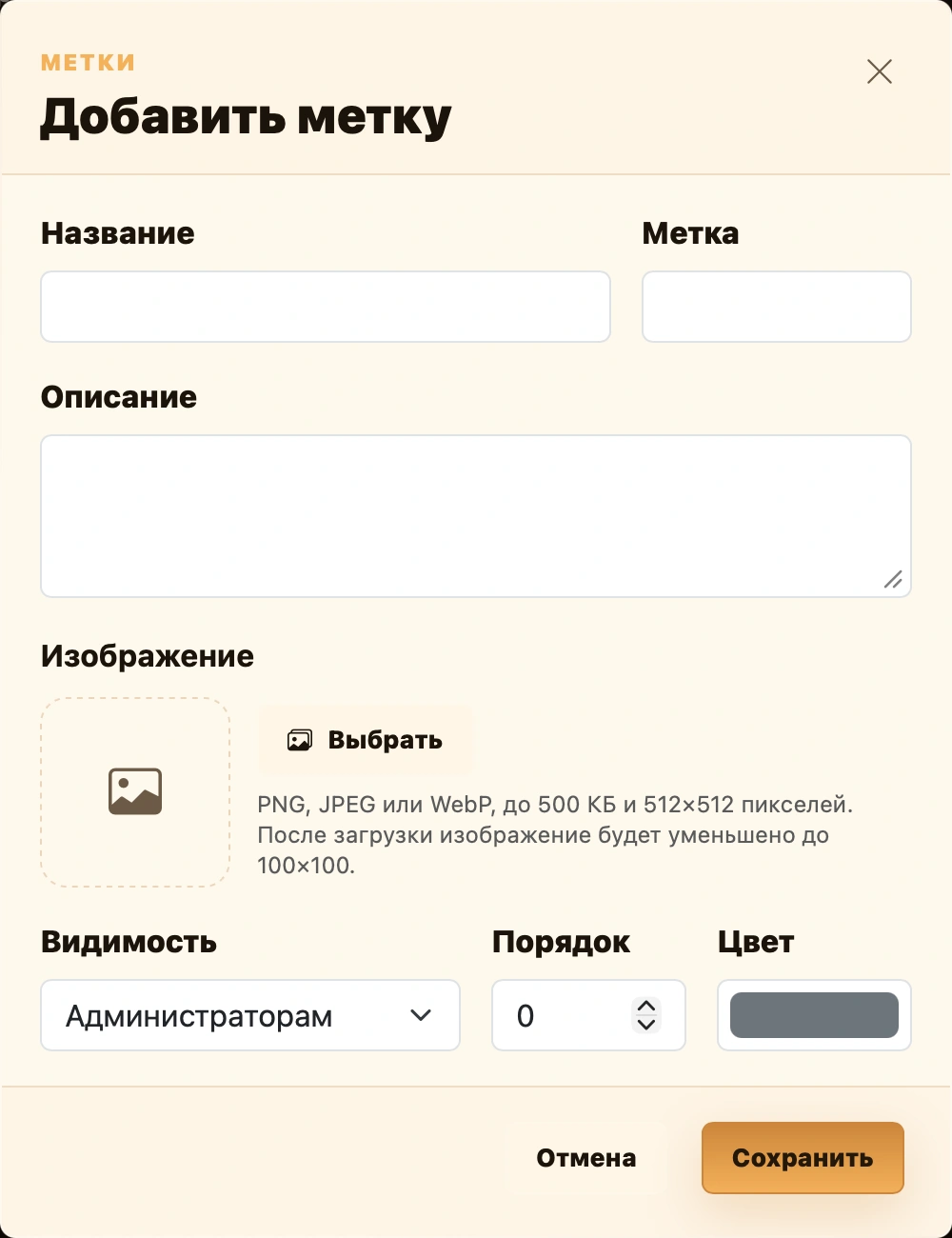
Click Add to create a label or category. Fields include:
- Name — a clear full name;
- Label — up to three characters for compact tables;
- Description — purpose;
- Image — select from or upload to the club gallery;
- Visibility — who can see it;
- Order — position in lists;
- Color — the dot beside the abbreviation.
Visibility determines where the mark appears:
- Administrators — control panel and administrator participant lists;
- Everyone — also public participant lists and standings.
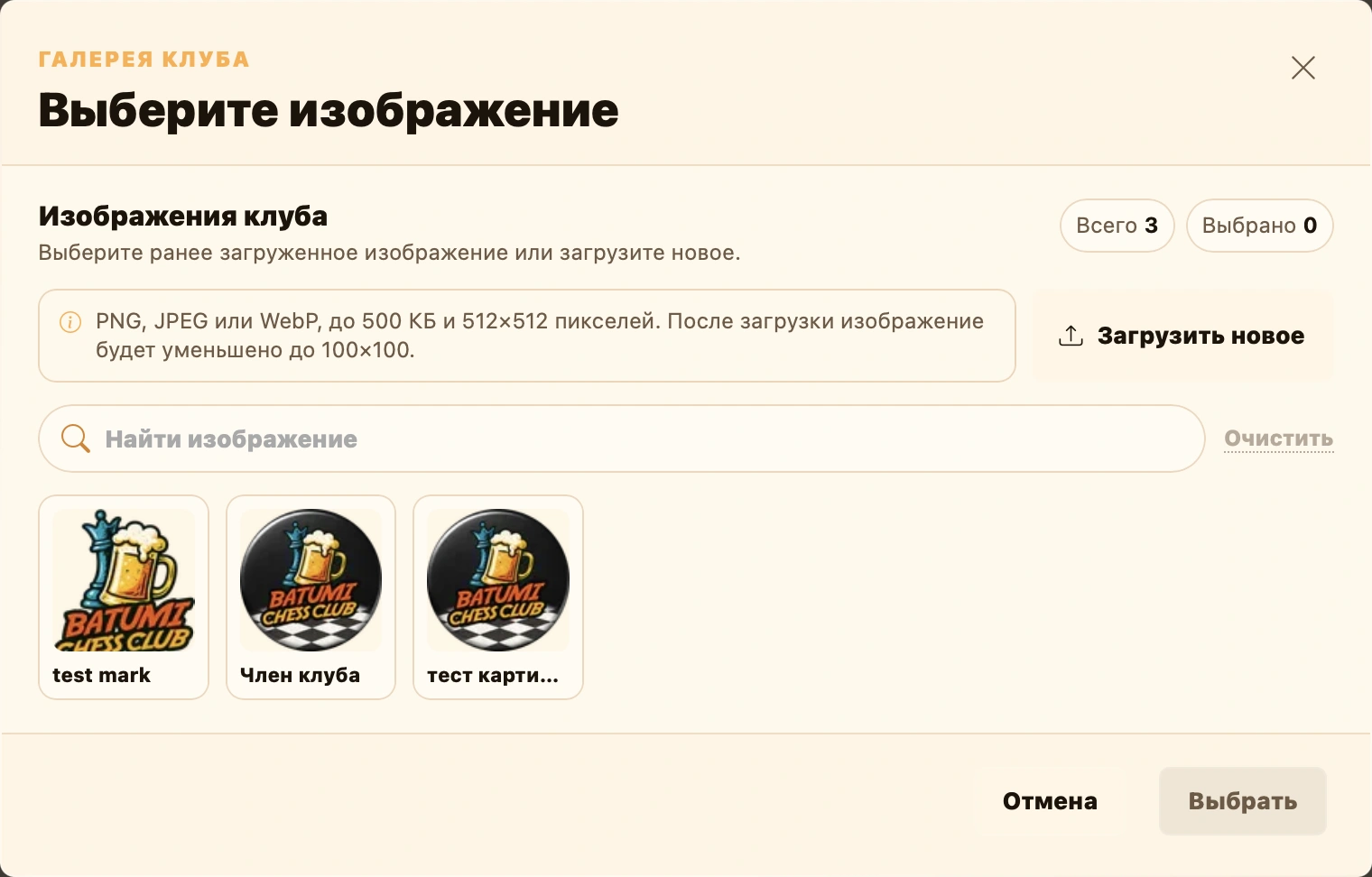
The gallery reuses club images. New PNG, JPEG or WebP files must be at most 500 KB and 512 × 512 pixels. Uploads are prepared automatically for compact display.
Editing uses the same fields, so appearance or descriptions can change without reassigning the mark.
Assigning to players
Return to Players and click plus under Labels or Categories, or use the player editor. Select a definition, optionally add a comment and expiry date. Without a date, it lasts indefinitely.
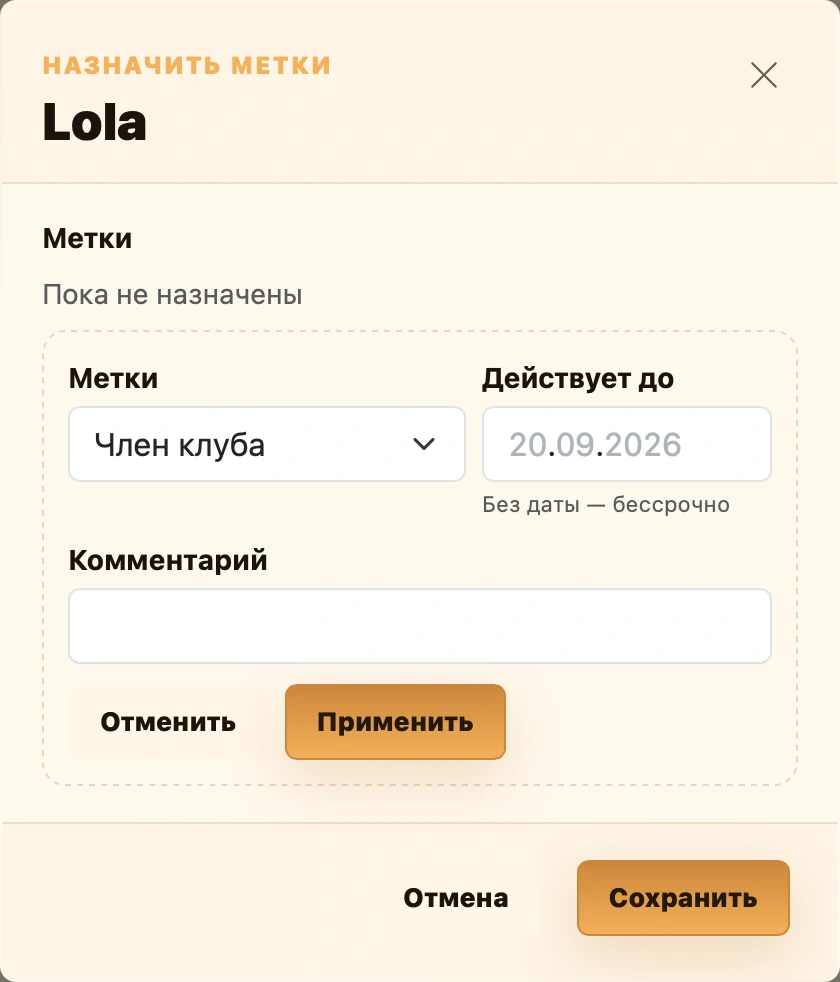
Players can have several labels/categories. Assigned definitions are not offered again. Each assignment in the editor supports comment/expiry changes and removal.

Lists show the image if configured; otherwise a colored dot and abbreviation. Hover for the full name.
Entry payments
Payment shows ongoing player rules. Plus opens creation; an existing badge opens viewing/editing.
Do not charge exempts a player from entry fees. Add an optional reason. Fee-based tournaments then need no separate payment mark for that player.
A subscription covers entries by date, visit count or monetary balance. An eligible subscription is selected automatically when adding a player to an event that accepts it. Insufficient monetary coverage produces a red coin: part of the charge remains due.
Usage counts after completion if payment remains enabled and uses the subscription. Count-based balances decrease and the event enters history. Clearing payment or marking it paid separately avoids using the subscription.
Three subscription types are available:
- until a date — valid through that day, inclusive;
- number of tournaments — a specified prepaid entry count;
- balance — entry charges are covered up to the remaining monetary balance.
A subscription can cover all club events or one season. Comments record extra conditions. Only one may be active per player; completed ones remain in history.
Subscriptions become exhausted when their visit limit, date or monetary balance runs out. Increasing the limit or initial balance, or extending the date, can reactivate one if no other active subscription exists. A limit cannot fall below recorded visits, or a balance below recorded deductions. Currency cannot change after usage.
The button opens counted events. Administrators can manually add completed events the player entered or remove mistaken usage. Restoring a balance resumes the subscription if no other active one exists.
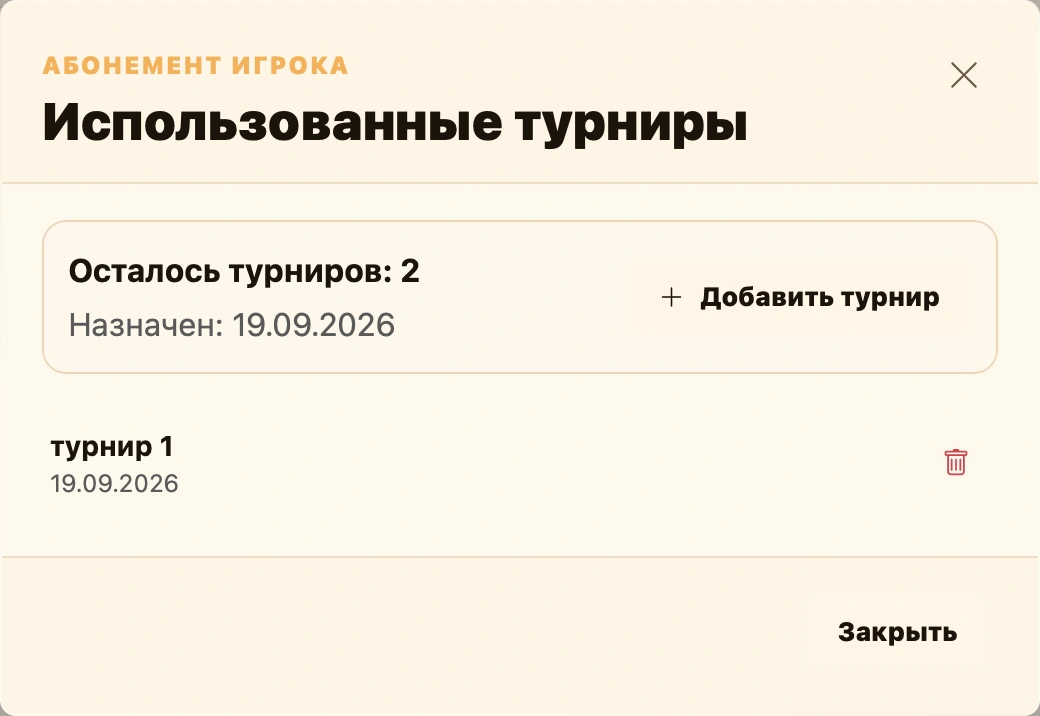
Ending a used subscription retains its history. This does not issue a monetary refund; check receipts and any required financial corrections separately.
Enter the amount received, currency and payment date when creating a subscription. Free records zero and fills currency and date automatically. For balance subscriptions, initial balance is separate from the purchase price: 90 GEL can buy 100 GEL of coverage. See Finances for payment, editing and usage details.
See Tournament entry payments for individual entry marks.
Finances
After Club players, Finances groups Payments, Subscriptions and Rules. The gear opens club currency and base fee settings.
Expand tournaments or view individual player entries, edit charges and receipts, review outstanding amounts and mark unfilled payments from their charges. Subscriptions brings together purchases, usage and remaining allowances. Rules define fees by label, category, title or specific player.
Each tab totals all receipts matching search and filters, separately by currency. Subscription purchases are not counted again with each deduction. See the detailed Finances guide for workflows, limitations and examples.
Importing a tournament
Accepted data
The tab accepts tournament JSON containing settings, players, teams and games. Excel, result photos or arbitrary name lists are unsuitable. Start from a prepared service export; see Managing a tournament.
Initial validation requires name, system, the players array, games and games.regular, even when the latter is empty. Swiss, round-robin, mixed and playoff parameters live in their respective file sections.
TIP
Valid JSON structure does not prove results, names or club selection are correct. Review the preview before saving.
Step 1. Paste text or drop a file
Use Paste JSON or drop a file on the left. File drops validate automatically; pasted text requires Check.
Clear resets text, errors, preview and both import options. It does not delete an imported tournament.
Step 2. Configure import
| Setting | Effect |
|---|---|
| Import as rated if absent from JSON | Applies only without explicit rated: true or rated: false. File values take priority. Off by default. |
| Create all players as new, without matching | Creates new profiles when enabled. Otherwise matches by name within the current club and creates missing players. Off by default. |
Name matching does not establish identity. Cyrillic and Latin spellings may create different records; identical names may belong to different people. Avoid forcing new profiles for regular returning players, as it creates duplicates.
Rated status is saved as an event attribute. Import itself does not recalculate player ratings.
Step 3. Review the preview
Preview appears on the right, with JSON valid. Ready to import below the buttons. Validation creates nothing before Import.
Check in this order:
- Summary: name, dates, system, format, status, stage and counts of players, teams, rounds and matches.
- System settings:
swiss,roundRobin,eliminationandmixedcorrespond to Swiss, round robin, playoffs and mixed. - Players and teams: names, counts and rosters. IDs help match file records.
- Games: regular, upper/lower playoff brackets and other matches. Tables show number, round, board, sides, result and stage. BYE means no opponent.
Clubs shows source-file data; the panel saves into the current club. Rated import reflects the form checkbox, but explicit JSON rated status takes priority.
Step 4. Save the tournament
Click Import and wait for Import completed successfully. Tournament saved. Open the club tournament list and check the event, participants and results.
After editing JSON, click Check again to refresh the preview. Fix the indicated field if validation fails.
Repeated imports
Import creates a new event, not an update by name. Repeating may create duplicates. After interruption, check tournaments and players first: some records may already have saved.
Merging players
When to merge and which profile remains
Merge when one person has two profiles splitting their participation. To substitute different people, use participant management.
Choose Player to remove on the left and Target player on the right. Transfer is left to right despite the bidirectional arrow.
Illustrative names: both records must belong to the same person.
Step 1. Select and compare
Select two different players. Each shows name, match/tournament counts, ratings by time control, games, peak and K. See Ratings.
Choose the profile to keep as target. Compare history, not just names. The operation processes found matches and tournaments for both players; do not assume it is limited to events currently visible in the club list.
Step 2. Click Check
Check summary shows:
| Indicator | Meaning |
|---|---|
| Matches safe to reassign | Transfers with no detected conflict. |
| Add to tournaments | Source-player events the target has not entered, listed with links. |
| Conflicts | Blocking matches. Merge is unavailable while any remain. |
Checks detect three situations:
- the player would face themselves;
- the target already has a game in the same tournament and round;
- transfer would duplicate tournament, round, number, board and sides.
Conflicts show players, result, tournament, round, number, board and reason. Follow the tournament link and inspect records. The tool does not choose which conflicting game to keep.
Conflict example
Alex Ivanov and Alexey Ivanov have different games in one round. Merging would give one person two games in that round. First determine which record is wrong.
Step 3. Confirm merging
After Check passed; ready to merge, click Merge. Confirm the removed and retained profiles and match/tournament counts.
Changing either selected player resets validation; check the new pair again.
The service adds the target to missing events, reassigns matches and marks the duplicate deleted. Wait for Done: player merged, then review affected events. There is no undo button.
After merging
Ratings are not merged or recalculated. Saved tournament and season tables may retain old data. Rebuild affected tournament caches first, then season caches.
If interrupted, inspect records first because transfer uses several saves. Reload and recheck before retrying.
Tournaments and seasons: saved tables
What a cache is
A cache is a saved calculation for fast table loading. Source games and settings remain separate. Tournaments have their own caches; seasons combine them with saved bonuses.
Cache exists confirms presence, not freshness. No cache means missing or empty data.
List layout
Club seasons appear first. Headers show name, ID, cache state and actions for the whole season. Seasons start expanded. The arrow hides tournaments, while shows them again.
Each tournament inside has its own ID, indicators and actions applying only to that event. The icon and the name open its page in a new tab.
Seasons show five per page; tournaments inside show ten. Events sort newest first by end date or another available date. Each list has separate pagination.
Tournaments outside seasons appear below, ten per page. No season link is not an error. Add an event through the season page if it should count.
Reload fetches lists again; it does not recalculate tables.
Clear or rebuild
| Action | Result |
|---|---|
| Clear tournament cache | Removes saved standings, retaining the tournament, games and results. |
| Rebuild tournament cache | Reloads the event and rebuilds standings. Rated events calculate rating indicators for the table before saving the cache. |
| Clear season cache | Removes saved standings, retaining the season and linked events. |
| Rebuild season cache | Combines existing tournament caches using season settings, saved bonuses and their enabled states. |
On narrow screens, icons replace labels: eraser — clear, circular arrow — rebuild. Actions start immediately without separate confirmation.
No preliminary clearing is needed: rebuild overwrites the old result. Clearing alone does not fix source data.
Refresh order
After changing tournament data, rebuild its table first, then season standings.
Source data. Check players and results on the tournament page.
Tournament cache. Click Rebuild cache for the changed event. Repeat for other affected events.
Season cache. Rebuild from the season header, then check the leaderboard.
Season caches depend on tournament caches
Rebuilding a season does not rebuild tournament tables. Events without caches are excluded from the calculation. If none have caches, no new season cache is saved. Check required tournament caches for presence and freshness first.
Clearing or rebuilding an event does not automatically update its season cache. Perform both actions in that order.
Bonuses use saved data, enabled states and rule priority. Rebuilding a season cache does not replace saving updated calculations in tournament bonuses. See Season bonuses and Seasons for counting limits.
A season rebuild also includes all saved bonuses outside tournaments and their history. Adding, editing or deleting these entries updates totals automatically; a manual rebuild is not needed after each change. A season containing only these bonuses can also be rebuilt.
If an operation’s result is unclear
| Situation | Check |
|---|---|
| Import disabled | Click Check and fix JSON errors. |
| Duplicate players after import | Check the force-new option and name spelling. Validate a merge for profiles of the same person. |
| Merge disabled | Select two different players and pass a conflict-free check. Recheck after changing selection. |
| Tournament missing from season standings | Check its season link, cache and inclusion rules. |
| Cache exists but figures are old | Presence does not prove freshness. Rebuild affected tournaments, then the season. |
| Rebuild has no visible effect | Reload the list and open standings. Cache-operation errors are not always shown separately in the current panel. |
When requesting help, provide the action, tournament/season name and ID, both profiles for a merge, and the error message. After interrupted import or merging, check what saved before retrying.