Managing a tournament
This guide covers administrator actions after creation, from checking lineups and starting through results, playoffs and completion. Main controls are on the tournament page.
Important
These actions are available only to the open club’s administrator. Finished tournaments cannot be edited through the interface.
Where actions are located
The header contains the main action for the current stage and the menu . Tabs below open information, pairings and standings.
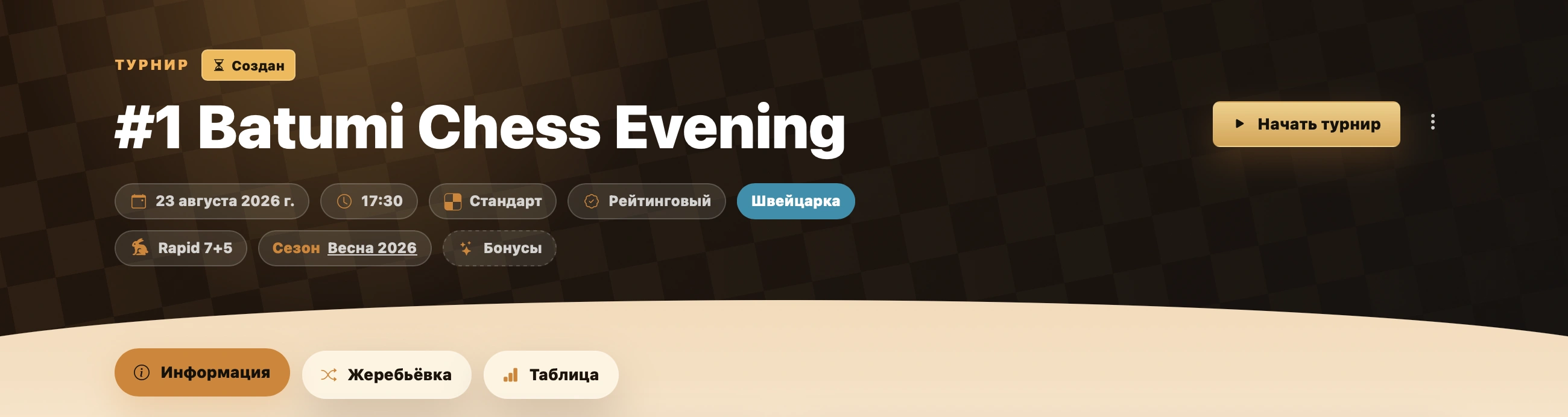
| Element | Purpose |
|---|---|
| Main button | Changes with status: Start tournament, Start playoffs or Finish tournament. |
| Menu | Right of the main button. Editing, returning to Created, exporting and deletion. |
| Information | Settings, participants, teams, season and lineup. |
| Pairings | Creating rounds and cycles, matches, results, manual games and playoff stages. |
| Standings | Current places, points, additional statistics and table export. |
Statuses and available actions
| Status | Available actions |
|---|---|
| Created | Edit information, playing settings and participants, then start. |
| In progress | Run pairings and matches. General information remains editable, but some structural and lineup settings are locked. |
| Finished | View data, standings and export. Editing is hidden. |
Tournament menu
The round button in the header opens settings, status, data and tournament actions.
Edit tournament
Opens three tabs: Information, Settings and Participants.
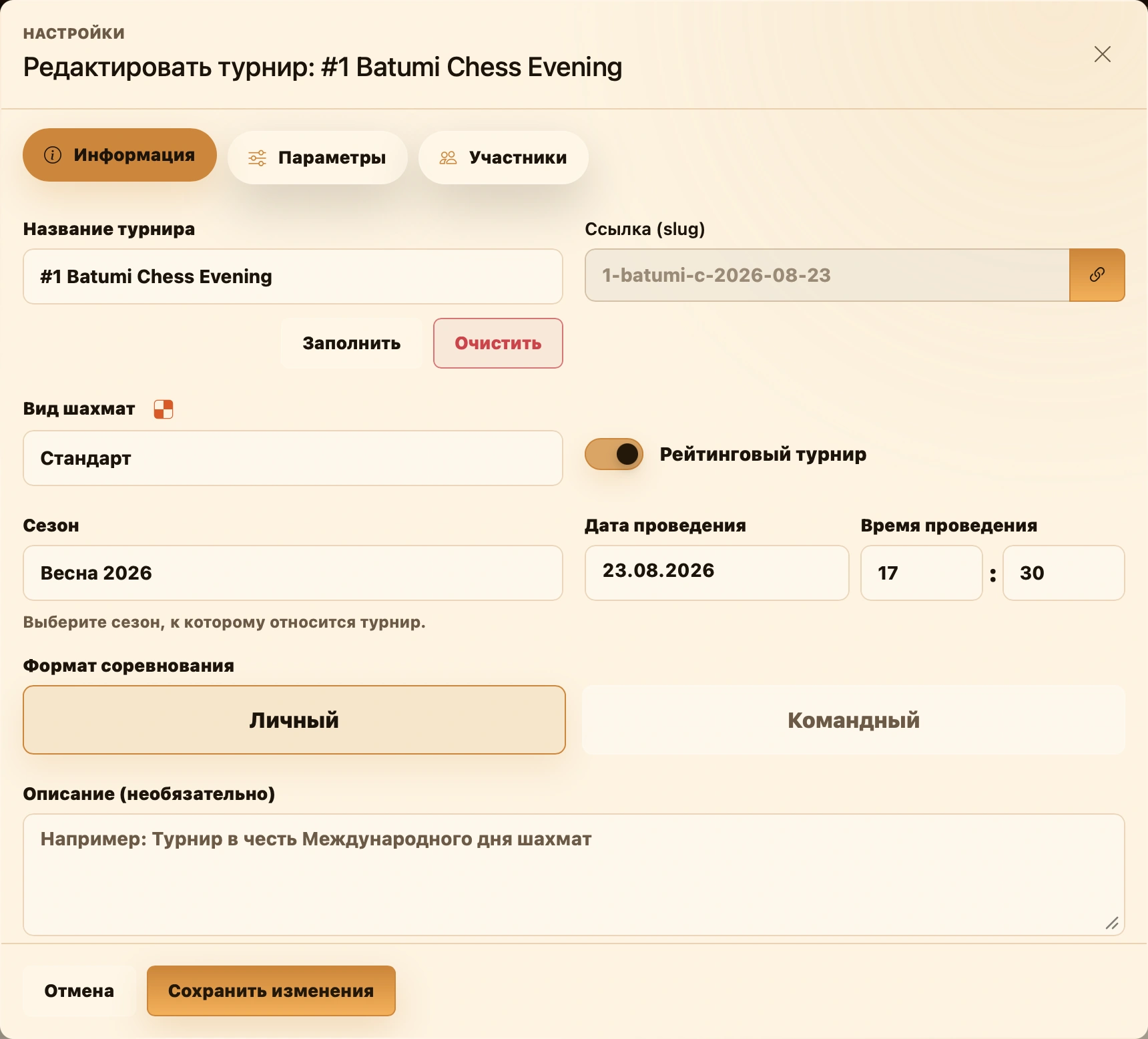
It follows the creation wizard’s structure for basic information, settings and lineups. See Creating a tournament for fields. Tab availability depends on status and existing matches.
Return to Created
Available only while In progress. Restores Created and clears ratings captured at start. Pairings, matches and entered results are retained.
Export tournament data
Export downloads a .txt file containing saved settings, participants, matches and results. It serves as a technical copy and can help support investigate issues.
Delete tournament
Delete tournament is always last. After confirmation, the event disappears from public lists and you return to the club’s tournament list. It cannot be restored through the interface. The record remains in the database marked deleted, but its results and statistics no longer count toward club or player statistics.
Starting the tournament
New events show Start tournament in the header.
The service saves starting ratings before switching the status to In progress.
Continue on Pairings, where controls for rounds, cycles or playoff stages become available.
Player registration
On Information, Add players in Participants opens registration with the current lineup. Use it to add players and complete team rosters.
See After tournament creation in Registering participants for the button, lineups and match-related restrictions.
Managing pairings and matches
Pairings contains all opponents and results. Every system uses stage information and actions at the top, followed by an accordion of rounds or stages.
Pairing controls
Pairing actions are unavailable while Created. They appear only after Start tournament switches the event to In progress.
Generate pairings
Swiss uses Generate round N pairings to create one round. Round robin uses Generate cycle N pairings to create all rounds of the next cycle. Pairings then appear below.
Playoffs first require configuring the bracket field, then starting it separately. See Playoffs below.
Additional actions
The button to the right of pairing generation opens actions for the whole schedule.
| Button | Action |
|---|---|
| Add games manually | Opens a new game form outside an expanded round. Use for matches added separately from automatic pairings. See Adding games manually. |
| Random results | Immediately assigns random scores only to unfinished matches in the current stage. BYEs and recorded technical results remain unchanged. Intended for test events and demonstrations. |
| Delete all rounds | After confirmation, removes all rounds and matches in the current stage from pairings. Records remain marked deleted in the database but cannot be restored in the interface. The schedule can then be regenerated. |
Rounds, matches and results
Round or stage row
Rounds, cycles and playoff stages are grouped in an accordion. Click a row to open its matches and controls.
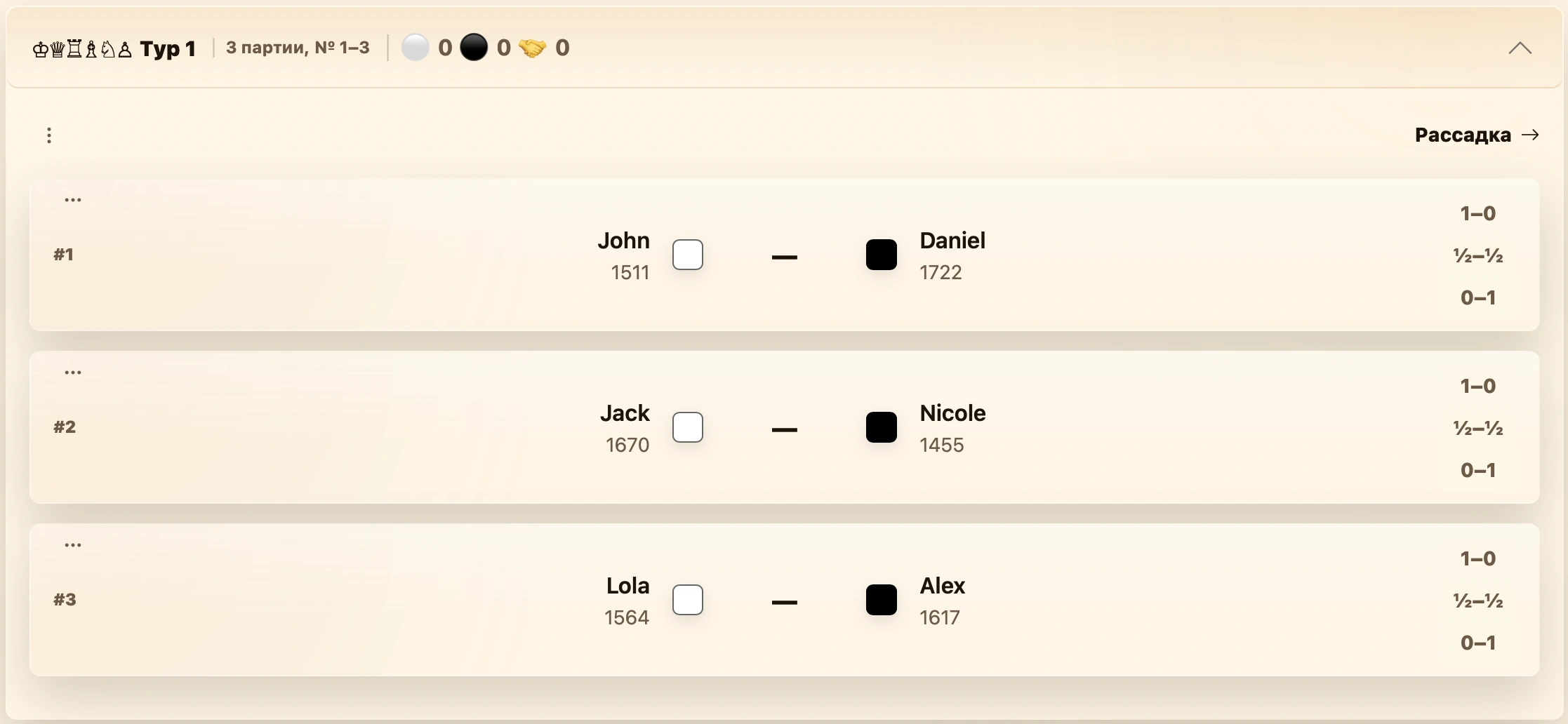
Seating in an expanded group opens all round pairings in a dialog. See Tournament pairings for rows, statuses and cards.
Entering a result
Open a round, find the game and select 1–0, ½–½ or 0–1 on the right. Results save immediately, updating the round row, standings and playoff series without a separate Save button.

After selecting a score, an icon appears beside the buttons . It opens termination reasons for that result. See Game termination.
Team results are entered for the match or individual boards. See Team matches in Tournament pairings. Selecting a result immediately recalculates the overall match score.
Actions for a round or match
An expanded round has two menus: one for the whole match group, another for an individual game.
Round menu
At the top of the expanded round, left of Seating. Add a match to this group or delete the whole group.
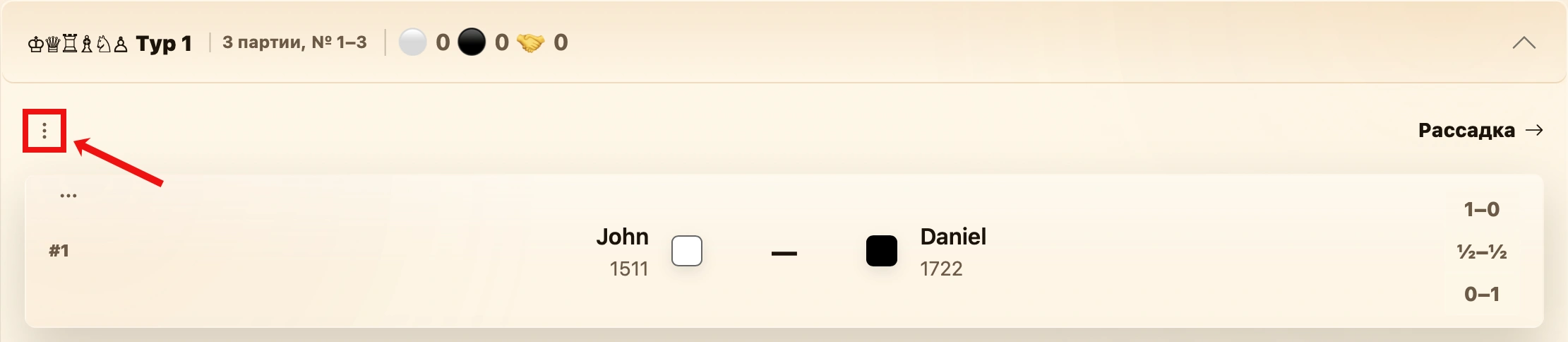
Add match manually. Opens a game form within the selected round. Stage and round/cycle values are prefilled. Select participants and fill match details. After saving, the game appears alongside automatic pairings and counts equally in standings.
Delete round. Removes every game in the round or match in the stage after confirmation. Use to rebuild a round, then regenerate it or add games manually.
Game card menu
Located on a game or match card. Edit that encounter or delete it without affecting other pairings.
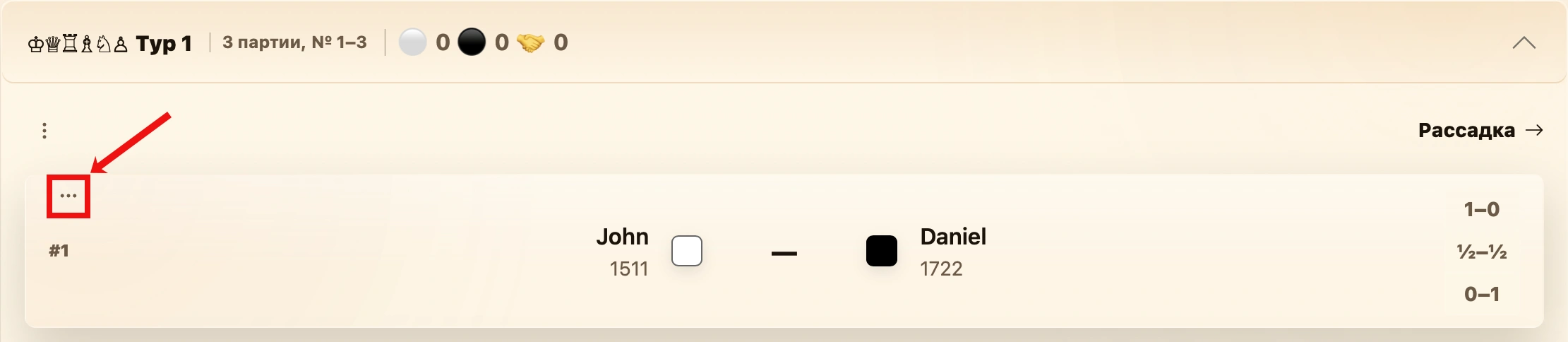
Edit. Opens the selected encounter’s editor. See Editing a game.
Delete match. Removes only that encounter, including its board games for team matches. Confirmation shows lineups and score to help avoid deleting the wrong match.
Differences between systems
Swiss system
New pairings use current standings, so normally enter previous results first. See Swiss system for pairing, BYEs and extra rounds.
Round robin
By rounds / By cycles switches between chronological rounds and all matches in a cycle. Results do not change existing schedules. See Round robin.
Playoffs
Starting playoffs
After qualification in a mixed event, the main button becomes Start playoffs. Its dropdown still allows Finish tournament.
Start playoffs in either location:
- the tournament header’s Start playoffs button;
- the same button above the provisional playoff table on Pairings.
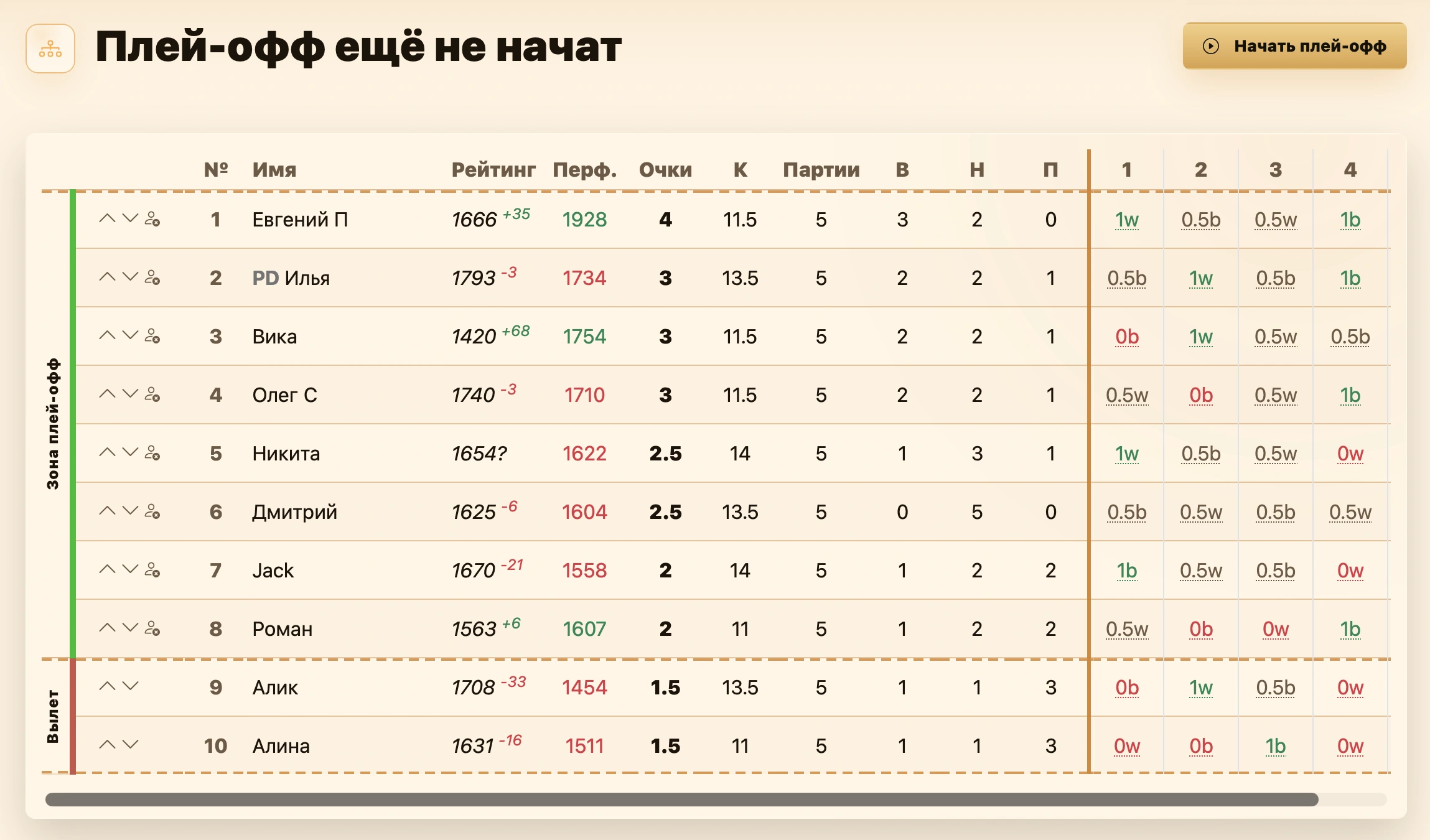
Before starting, Pairings shows current qualification standings. Reorder seeds and exclude participants who should not enter. Starting creates opening series from this list.
Changing seed order
The first column has round buttons and . Each moves the participant one position. Use them to reorder tied qualifiers or place an invited player at a chosen seed.
This order is used only for the opening bracket. Qualification standings, points and tiebreaks do not change.
Excluding participants
The same column gives participants in playoff zones a button . It removes them from seeding without deleting them from the event or changing qualification place. It then becomes ; click again to restore the participant.
Seed order and exclusions apply until Start playoffs. Afterward, opening series exist and match results determine progress.
If qualification is incomplete, a warning shows completed and planned rounds/cycles. Confirmation still starts playoffs from current standings.
Adding playoffs to Swiss or round robin
Ongoing standalone Swiss and round-robin events have a dropdown beside Finish tournament. Add playoff settings without finishing the event.
Select Add playoffs and save the dialog settings. The event becomes mixed and Pairings/Standings gain stage switches.
The dialog uses the same settings as Mixed system: qualification and playoffs in the creation wizard.
Saving settings does not create pairings or start the bracket. Review the field on Pairings, then click Start playoffs.
See Playoffs for selection, brackets and series, and Mixed system for both stages.
Playoff pairings
After starting, Pairings shows bracket series and two continuation buttons.
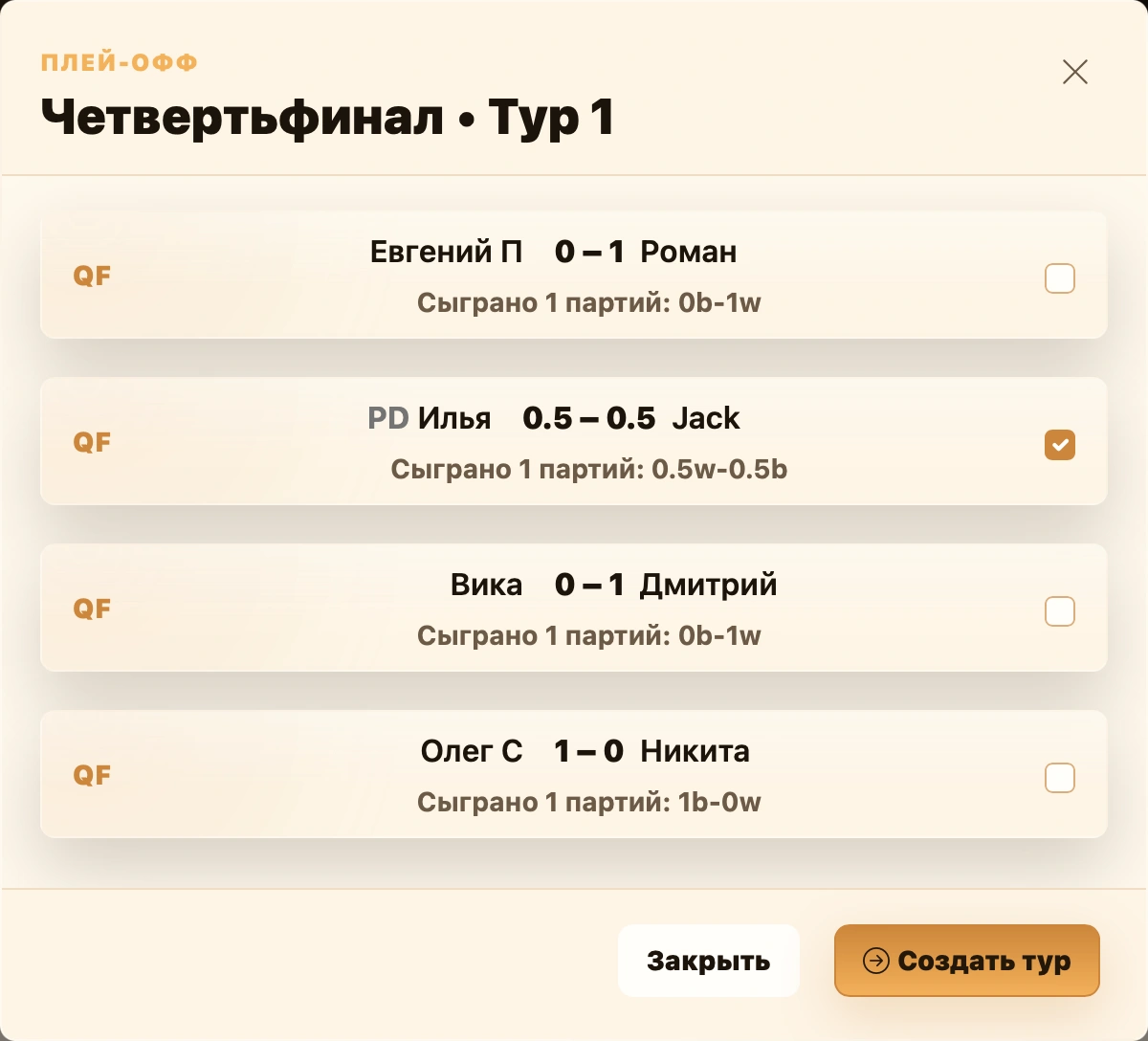
Next round. Opens current series. Select those needing another game and create the round. Games are added to the same series and stage to continue deciding winners.
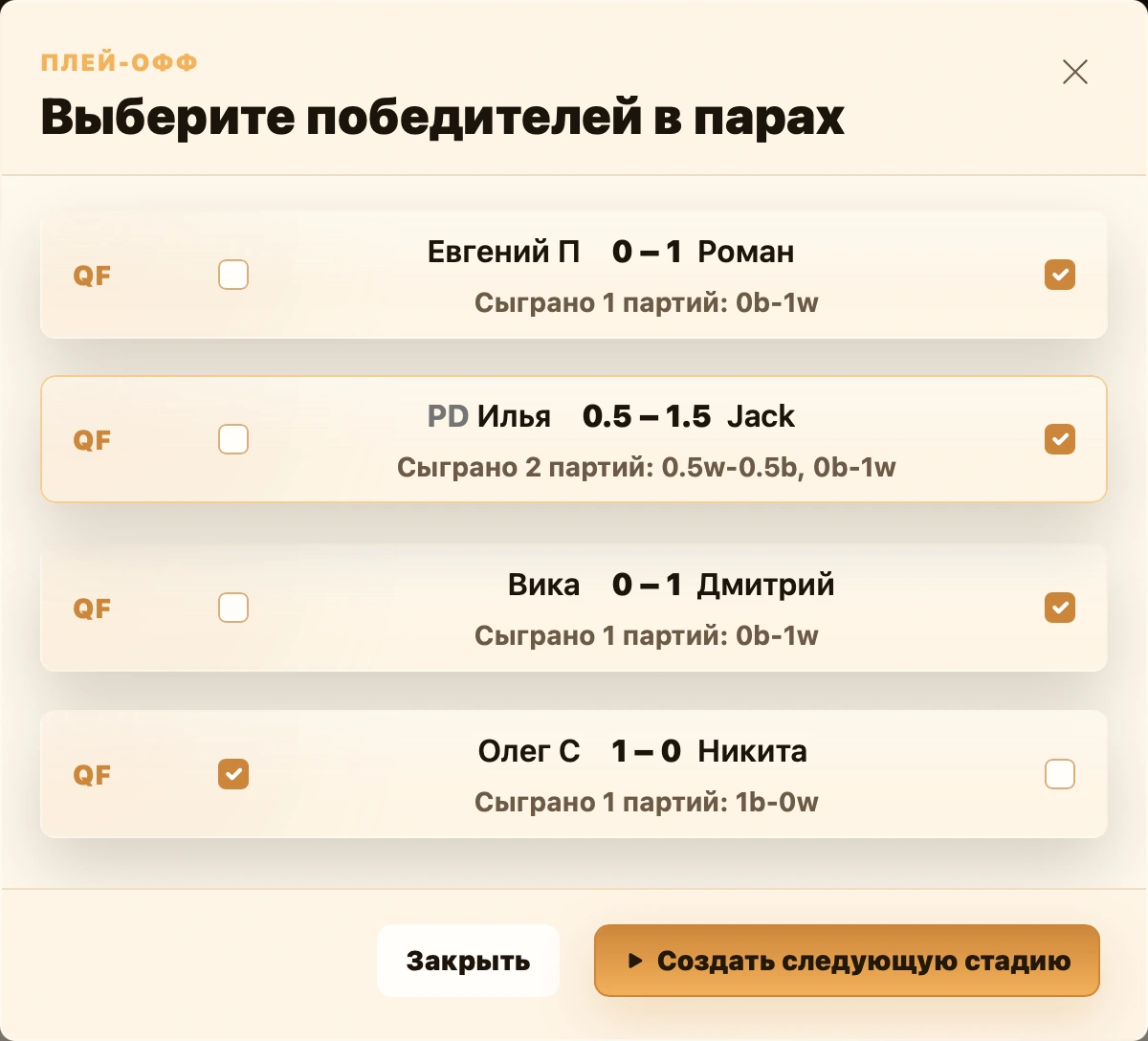
New stage. Opens the latest stage’s series to select winners. The system suggests winners from playoff settings; you can override them manually. Confirmation creates the next stage with selected participants. Upper and lower brackets progress independently.
After reaching the finals, no further stage can be created and New stage is disabled.
Season bonuses
If linked to a season, the header shows a Bonuses link beside the season name with an icon . It opens season bonus points.
See Season bonuses for manual and automatic awards. Bonuses remain editable after tournament completion.
Finishing the tournament
While In progress, Finish tournament opens confirmation.
Warnings identify unfinished regular games, missing planned Swiss rounds, unfinished playoff matches or series without a winner. They are warnings, not automatic blocks; the administrator makes the final decision.
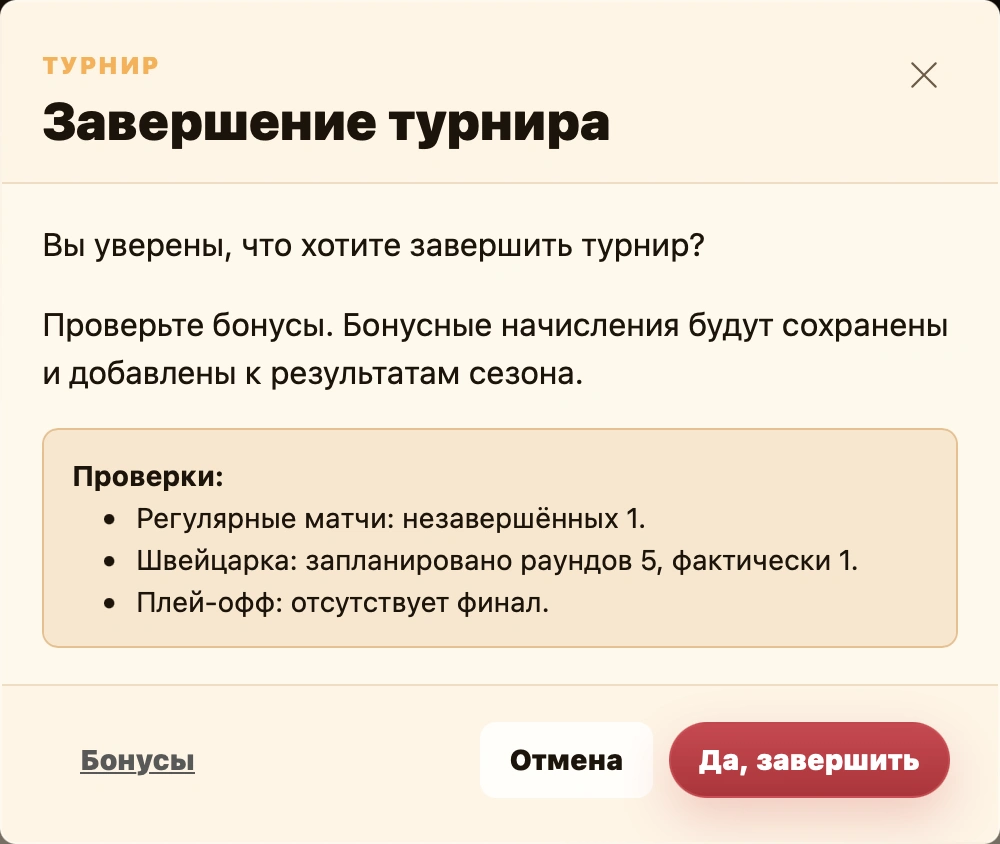
- Click Finish tournament.
- Review Checks. Close the dialog to enter missing results if needed, then reopen it.
- If linked to a season, Bonuses at the bottom opens additional point management.
- Click Yes, finish. Rated events first recalculate ratings, then save final standings and update season data.
On success, status becomes Finished and the header shows completion date and time. Menu editing is no longer available.
For paid tournaments, completion also records selected subscription usage: a visit, a date-based entry or a monetary deduction. Check payment methods before confirming, then review outstanding amounts and subscription history. Ordinary cash receipts must be entered separately; finishing does not fill them automatically. See Finances.
Publishing standings
Standings export is separate on the Standings tab. Two buttons offer preview and sharing a PNG image . They apply only to the current table or playoff bracket and appear when data exists.
See Standings for preview and PNG export.